Google Veo 3 is genuinely one of the most impressive AI video tools available in 2026. You type a sentence describing a scene, and a few seconds later you’re watching a cinematic video clip with realistic lighting, natural camera movement, and synchronized sound. The fact that you can now do this for free — without a credit card — is a significant shift.
But the free tier comes with real limitations worth knowing before you dive in. Watermarks exist on free videos. Audio generation is restricted unless you upgrade. And the credit system on Google Flow has changed more than once this year, so treat any specific number with a grain of salt until you check your own account.
This guide gives you the full picture — how to use Veo 3 and is Veo 3 free, answered honestly, step by step, with the correct access URLs and zero hype. Whether you’ve never touched an AI video tool or you’re coming from Sora (which was discontinued on April 26, 2026), this is everything you need to get started today.
Last verified: September 2026. Google changed its AI subscription pricing more than once this year, and its Flow credit system has shown conflicting numbers across its own support pages and across independent trackers checking it in the same week. Treat every figure on this page as a snapshot, not a permanent number — always confirm against your own Google account and Google’s live pricing page before deciding to upgrade.
What Is Google Veo 3? The Short Version
Google Veo 3 is Google DeepMind’s AI video generation model. It takes a text prompt describing a scene — or an image you upload — and turns it into a short, high-quality video clip. The current version in production is Veo 3.1, released in early 2026 — Google fully retired the original Veo 3.0 API endpoints on June 30, 2026, so 3.1 is now the only version actually running behind the scenes, even where “Veo 3” is still the name people use casually.
What makes it genuinely different from earlier AI video tools is the combination of two things. First, the visual quality is high enough that at a quick glance, clips can be mistaken for real footage. Physics feel right. Camera moves feel intentional. Lighting responds naturally. Second — and this is the capability that turned heads when it launched — Veo 3 can generate native audio synchronized to the video: ambient sound, realistic sound effects, background music, and even dialogue with lip-sync.
That audio capability is locked behind paid plans on most access routes, which we’ll cover below. But the video generation quality itself is available for free, right now.

Is Veo 3 Free Right Now? The Honest Answer
Yes — with a few things worth knowing upfront.
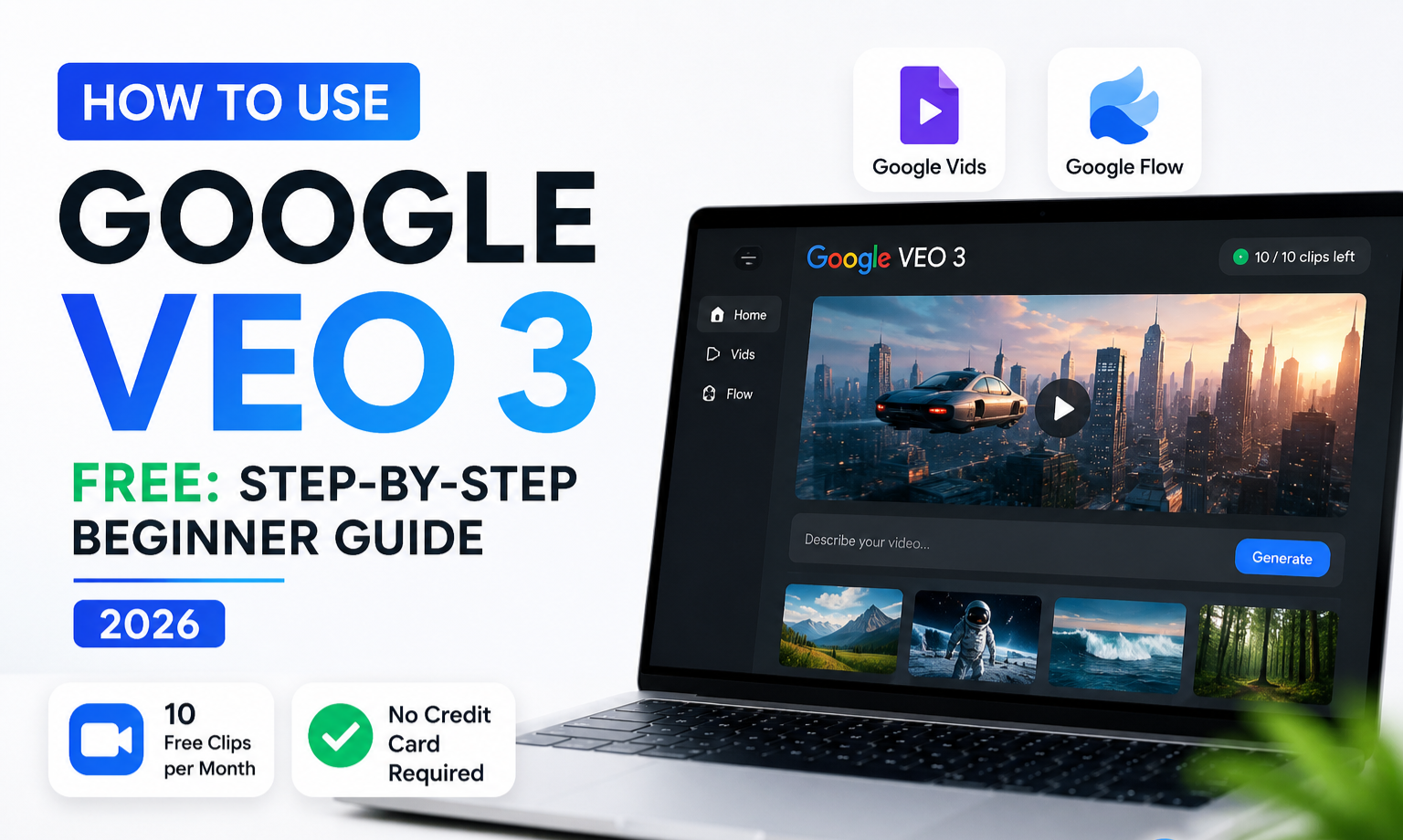
On April 2, 2026, Google made Veo 3.1 accessible to all personal Google account holders at no cost through two products: Google Vids and Google Flow. No subscription, no credit card. If you have a Gmail address and you’re 18 or older, you’re already in.
- Google Vids — 10 free video clips per month. No credit card. 8 seconds per clip, 720p resolution, video only (no AI audio). Visible “Made with Veo” watermark.
- Google Flow — free-of-charge trial credits with no subscription. Google has shown different systems on its own support pages and across independent trackers this year — sometimes a per-day allowance, sometimes a monthly refresh — so don’t rely on a specific number here. Open Flow and check your profile icon for your current balance and refresh date before planning around it.
The watermark truth:
Both free-tier products add a visible “Made with Veo” watermark to generated videos. This applies to free accounts and to the mid-tier paid plans too. The watermark only disappears at Google’s top-tier plan, and even then only where local regulations permit — and which exact tier that is, and what it costs, is one of the numbers currently in flux (see the pricing section below). Every tier, including the top one, also embeds an invisible SynthID watermark for AI-content transparency — that one can’t be removed at any tier, and it’s what lets tools like the Gemini app verify whether a video was AI-generated.
For most beginners, the visible watermark isn’t a dealbreaker. Veo 3’s video quality is still far ahead of what most free tools produce, and for learning, prototyping, or content that fits the increasingly normal “made with AI” aesthetic, the 10 free monthly clips in Google Vids are genuinely useful.
One thing worth flagging clearly: Google Vids’ free tier generates video only. Native audio (ambient sound, dialogue, sound effects) requires a paid Google AI plan. On the free tier, you generate the video clip, then add your own music or voiceover using Google Vids’ standard editing tools afterward — it’s a manual step, not automatic.
How to Use Veo 3 for Free: Google Vids (Method 1)
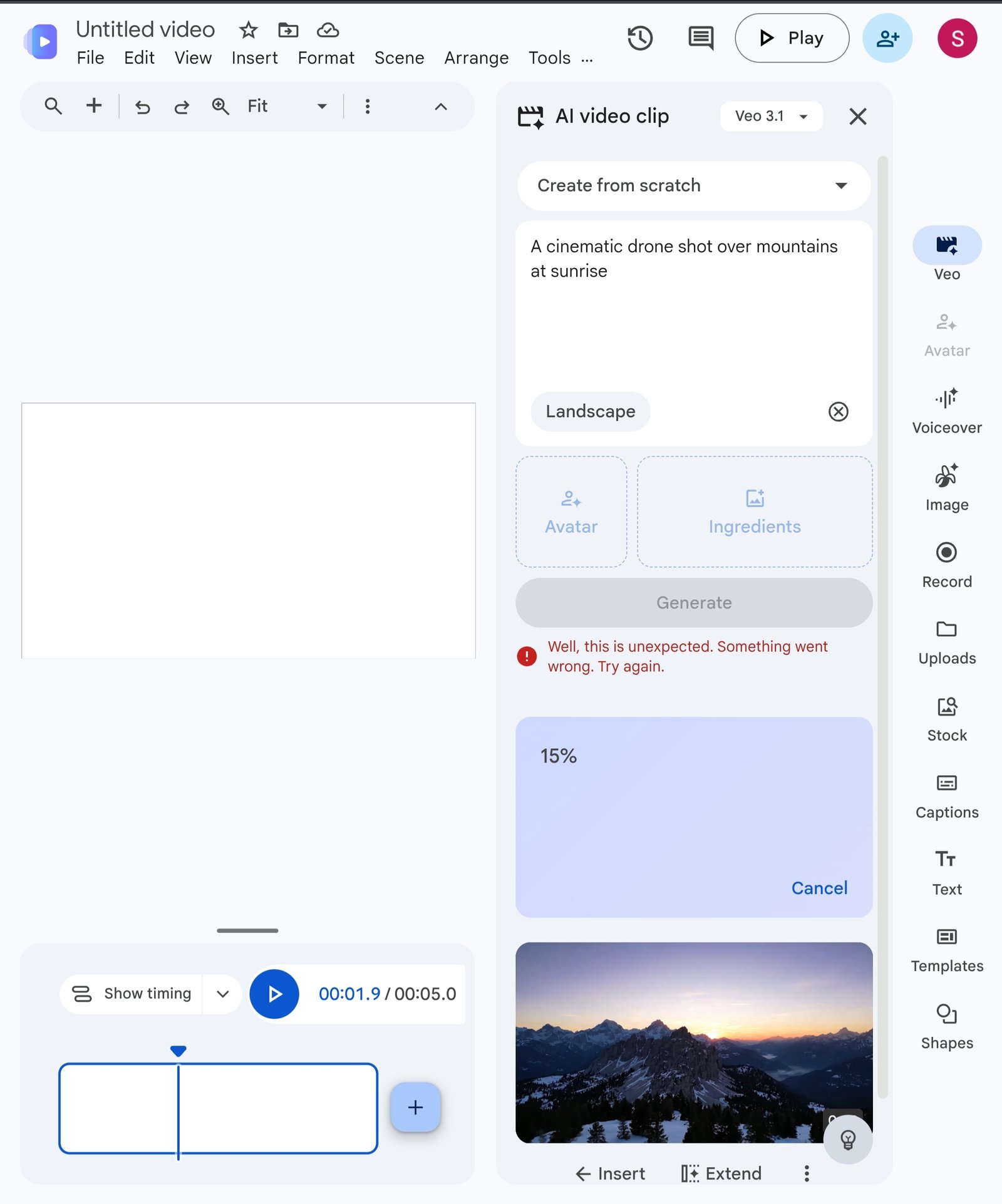
Google Vids lives at vids.new. Think of it as a browser-based video editor — like a lighter version of Adobe Premiere that also happens to have one of the world’s best AI video models built in. This is the right starting point for anyone new to AI video: it requires zero setup, and your 10 free monthly clips are waiting.
- Go to vids.new in any browser.
- Sign in with your Google account. Personal Gmail accounts work. You must be 18 or older. Workspace (business) accounts have separate access rules.
- Start a new project. You’ll land inside the Vids editor — a clean timeline-based interface.
- Find the AI generation option. Look for “Generate with AI” or “Create with Veo” in the toolbar, or right-click an empty spot in your timeline. Google updates the UI regularly, so exact placement can shift slightly.
- Write your prompt. The more specific you are, the better the result. (Full prompting guide below.)
- Click Generate and wait. Typical generation time is 20–90 seconds. One credit from your 10 monthly allowance is used.
- Review, keep, or retry. Each attempt uses a credit, so iterate thoughtfully.
- Edit and export. Trim, combine clips, add your own audio, overlay text, and export to Google Drive or download locally.
Each 8-second generation counts as one credit. You can chain generations or use the clip extension feature (each extension uses another credit and adds roughly 7 more seconds). For 10 monthly credits, a realistic target is either one ~80-second video built from extensions, or 10 separate 8-second clips for social content. Plan before you generate.
How to Use Veo 3 for Free: Google Flow (Method 2)
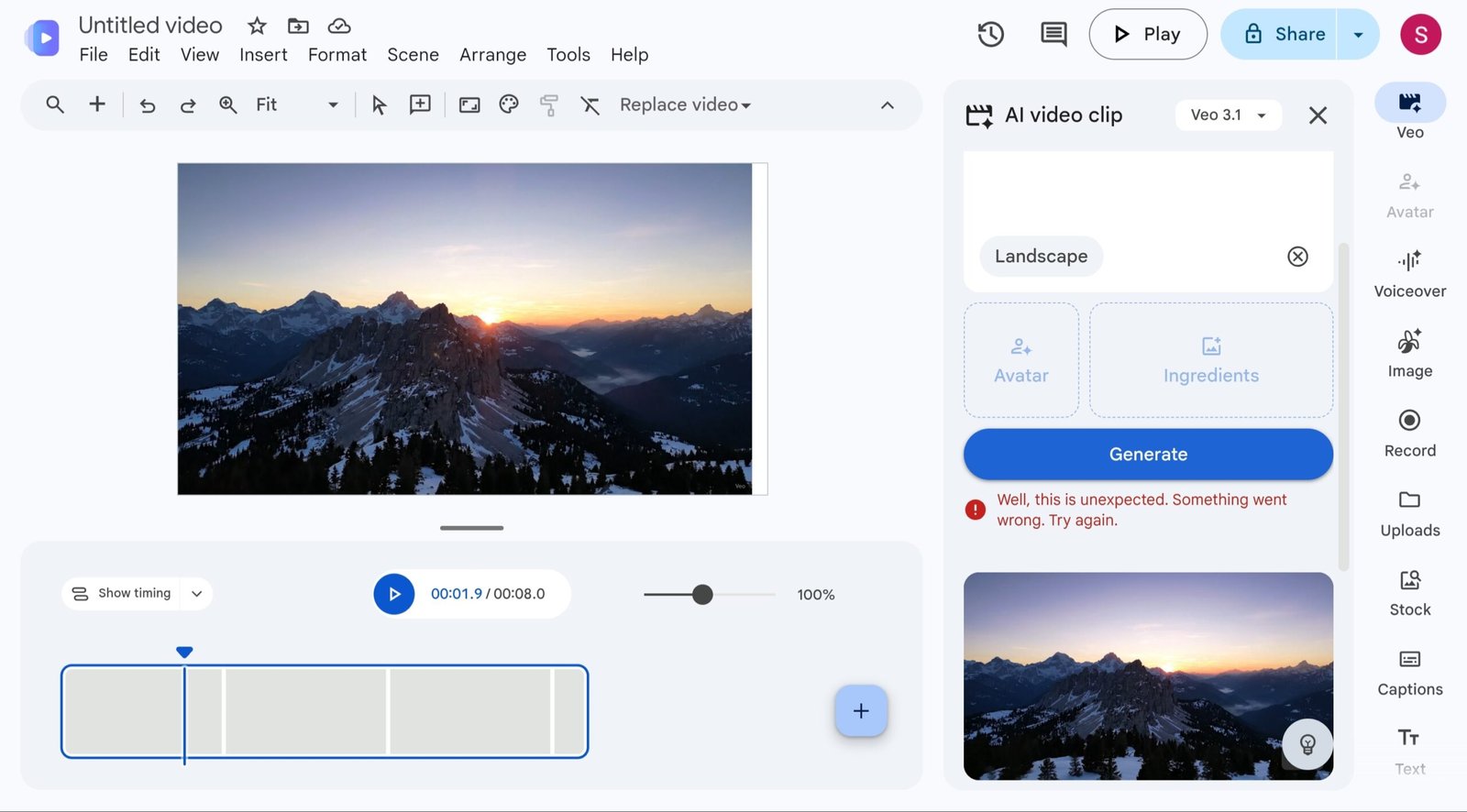
Google Flow is Google DeepMind’s dedicated AI filmmaking tool. Where Google Vids is a full video editor with generation built in, Flow is built purely around generation — a better environment for experimenting with prompts, trying different models, and producing clips at volume.
The web version lives at labs.google/flow (also accessible via flow.google), with mobile apps for Android and iOS.
Without a subscription, Flow gives you free-of-charge trial credits to try Veo 3.1 — no payment method needed. How many credits you get, and how often they refresh, depends on your account and region, and both Google’s own documentation and independent trackers checking it this year have described it inconsistently — sometimes as a daily allowance, sometimes monthly. Open Flow and check the credit counter next to your profile icon before you rely on a specific number — it will show you your actual balance and the cost of each model before you generate.
⚠️ Important: Free-of-charge credits don’t roll over once they expire. If you have credits sitting unused and no active project, spend a few minutes generating B-roll on evergreen prompts and save the clips for later.
How to access Google Flow:
- Go to labs.google/flow on a Chromium-based browser (Chrome, Edge, Brave). Google recommends desktop for full feature access.
- Sign in with your Google account. Same 18+ requirement applies. Free accounts get trial credits automatically — no subscription needed to start.
- Check your model selector. Credit cost per generation is shown next to each model — Flow now typically offers a Lite, Fast, and Quality tier for Veo 3.1, with Lite costing the fewest credits. Start with the cheapest tier to stretch your credits further; use the top tier for your best shots.
- Choose your aspect ratio before generating — it can’t be changed after. 16:9 for landscape, 9:16 for vertical (Reels, Shorts, TikTok); Veo 3.1 supports native vertical generation.
- Write your prompt and generate. Credits deduct automatically. Generation takes 20–90 seconds.
- Download your clip from your project library, individually or in batch. Free-tier videos carry the visible “Made with Veo” watermark.
The best workflow for most beginners: use Google Vids for polished final projects (10 monthly credits, full editing environment) and Google Flow for daily prompt experimentation (trial credits, pure generation focus). They complement each other well.
How to Use Veo 3 Prompts That Actually Work
Prompt quality has a dramatic effect on output quality — far more so than with image generators. The difference between “a car driving on a road” and a well-constructed cinematic prompt is the difference between a generic, muddy result and something you’d actually want to post.
The SCAM Prompt Formula for Veo 3
S — Subject: Who or what is in the video?
C — Composition: What type of shot? (close-up, wide angle, drone, tracking)
A — Action: What is happening? What is moving, and how?
M — Mood: Lighting, color, aesthetic, time of day, cinematic style
+ Audio (if on a paid plan): Describe sound in a separate sentence
If you’re on a paid plan, always write audio direction as a separate sentence from your visual description. Mixing the two causes the model to deprioritize one or the other.
4 Copy-Paste Prompts Ready to Use Now
1. Cinematic Landscape
“Aerial drone shot slowly rising above a misty mountain forest at sunrise, golden light breaking through low clouds, birds lifting from the treetops, wide cinematic composition, warm orange and amber color grade.”
2. Product B-Roll
“Macro close-up of a ceramic coffee cup being placed on a dark walnut surface, steam rising slowly, soft studio lighting with shallow depth of field, warm bokeh background, minimal luxury aesthetic.”
3. Vertical Social (9:16)
“A young woman in a bright minimal studio looking directly at camera, confident and relaxed energy, ring light setup, 9:16 vertical format, sharp and modern look, slight smile.”
4. Cinematic Narrative Scene
“Medium tracking shot following a man in his 30s walking through a rain-slicked city street at night, neon signs reflecting in puddles, slight lens flare, shallow depth of field, moody cinematic noir aesthetic.”
One more thing worth knowing: uploading a reference image before generating gives you dramatically more control over the visual output than text prompts alone. Veo 3.1’s “Ingredients to Video” mode lets you combine multiple reference images to control characters, objects, and style consistently across scenes — genuinely useful if you’re building a multi-clip story rather than one-off B-roll.
For more AI content creation strategies, see our full breakdown of the best AI tools for creators in 2026.
Veo 3 vs Kling vs Runway vs Sora: Which AI Video Tool Is Best?
The free-tier landscape for AI video tools changed a lot in the first half of 2026. Veo 3’s arrival as a free product forced competitors to respond. Here’s the honest state of play right now:
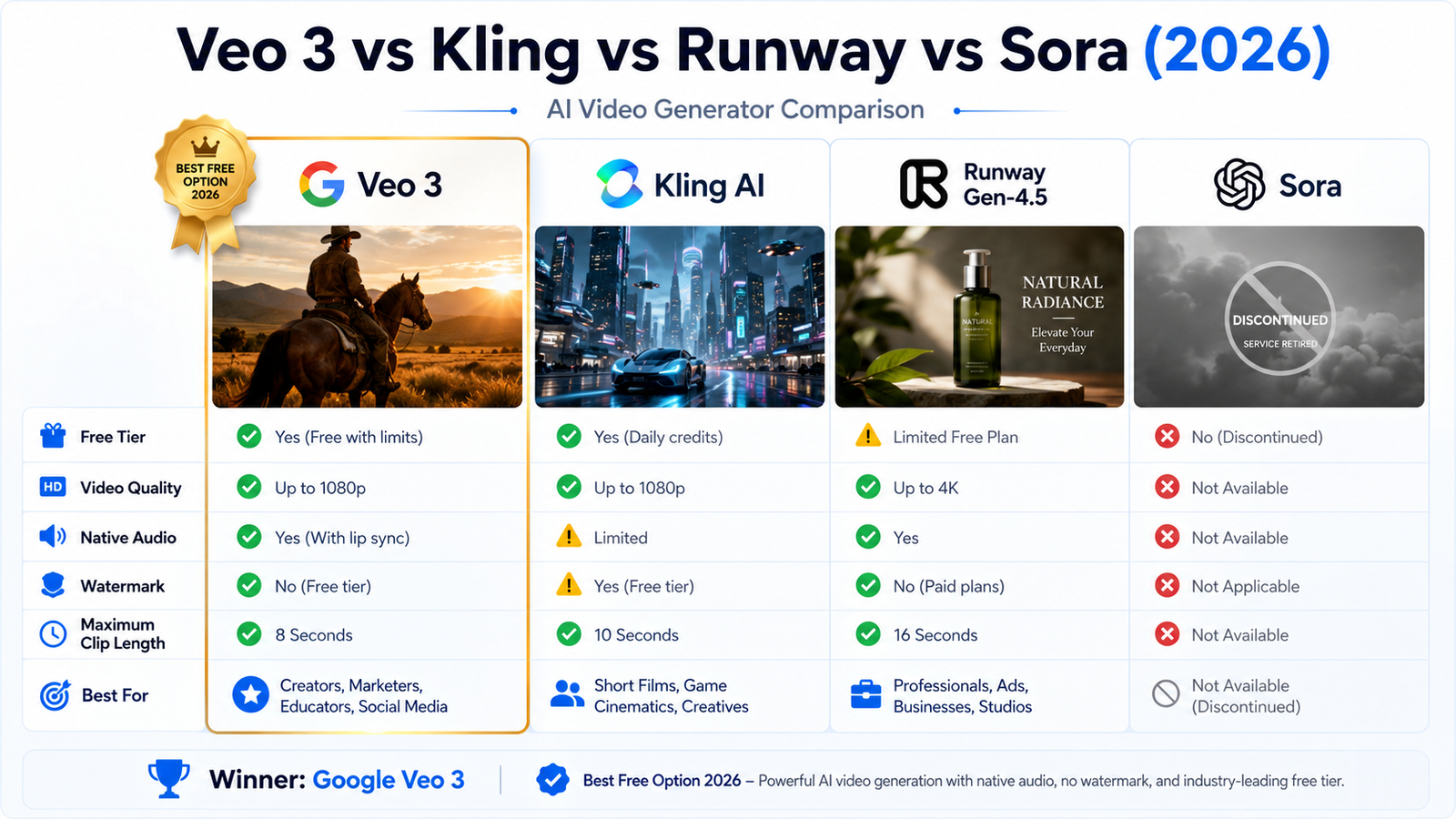
| Feature | Google Veo 3.1 | Kling AI | Runway Gen-4.5 | Sora (OpenAI) |
|---|---|---|---|---|
| Still Available? | ✅ Yes | ✅ Yes | ✅ Yes | ❌ Discontinued Apr 26, 2026 |
| Free Tier | ✅ 10 clips/mo (Vids) + trial credits (Flow) | ✅ Limited free credits | ✅ Limited starter credits | ❌ Never had a free tier |
| Native Audio | ✅ Yes (paid plans) ⚠️ Video only (free Vids) | ✅ Yes (Kling 3.0 Omni) | ❌ Video only | ⚠️ Discontinued |
| Free Resolution | 720p | 720p–1080p | 720p | N/A |
| Visible Watermark (Free) | ⚠️ Yes — “Made with Veo” on free + most paid tiers | ⚠️ Yes | ⚠️ Yes | N/A |
| Watermark Removed At | Google’s top Ultra tier — see pricing note below | Paid plan | Paid plan (~$15+/mo) | N/A |
| Clip Length | 8 sec (chainable, 2+ min possible) | Up to 15 sec (Kling 3.0) | Up to 16 sec | N/A |
| Best For | Beginners, zero-cost start, cinematic quality, Google ecosystem integration | Longer clips, 4K native output, budget scaling | Professional ad work, frame-precise creative control | N/A — discontinued |
| Paid Starting Price | $19.99/mo (Pro) — see pricing note below | From ~$6.99/mo | From ~$12/mo (annual) ~$15/mo (monthly) | N/A |
The honest verdict: For someone starting from zero, Veo 3 is still the most accessible option — real monthly video credits, no payment needed, and cinematic quality that’s hard to beat. The watermark is a real limitation, but it applies to nearly every tool at the free tier. Kling pulls ahead on native 4K output and lower cost per video at scale. Runway is the better choice for frame-precise creative control on professional ad work. Sora is no longer an option for new users.
Want a deeper dive into this category? Check out our guide to the best AI video tools for content creators.
Veo 3 Paid Plans: Google AI Subscription Tiers (2026)
Google has restructured its AI subscription lineup more than once this year, and — worth being upfront about — independent pricing trackers checking this in the same week don’t all agree with each other right now, particularly on the entry-level and top-tier plans. Here’s what’s solid and what needs a live check:
| Plan | Price | Flow / Video Access | Watermark |
|---|---|---|---|
| Free | $0 | 10 clips/mo (Vids) + trial credits (Flow) | ✅ Visible |
| Google AI Plus (entry tier) | Reported between $4.99 and $7.99/mo depending on source and timing — confirm live | Modest Flow credit boost | ✅ Visible |
| Google AI Pro | $19.99/mo | ~1,000 Flow credits/mo + native audio | ✅ Visible |
| Google AI Ultra | Structure itself is disputed right now — some sources show a two-tier $99.99/$199.99 split, others show a single $249.99/mo tier. Check Google’s live pricing page directly. | Highest credit allowance on the platform | ❌ Removed on the top tier (where permitted) |
Most creators will find the natural upgrade path is either the entry-level AI Plus tier for a modest boost in Flow credits, or Google AI Pro at $19.99/month if you specifically need native audio generation and heavier monthly credits for professional work. The Ultra tier (whatever its current structure) is aimed at developers, power users, and anyone who specifically needs the watermark removed.
Veo 3 Free Tier Limitations — The Complete Honest List
No tool is perfect. Here’s the full list of free-tier boundaries in one place, with no spin:
- 10 video clips per month on Google Vids. Hard monthly cap, no way to earn more on the free tier.
- Visible “Made with Veo” watermark on free and most paid-tier outputs, on both Vids and Flow. Only Google’s top-tier plan removes it, where regulations permit.
- No AI audio on the Google Vids free tier. You can add your own music or voiceover afterward with the editor’s built-in tools, but it isn’t the native, synced audio that paid plans generate.
- 8-second clip length per generation. Longer videos require chaining generations or using the extension feature — each use costs a credit.
- 720p resolution maximum on free and most paid tiers; the top tier unlocks higher resolutions.
- 18+ requirement, personal accounts only. Workspace business accounts have separate eligibility rules.
- Flow’s free credit system changes. Google’s own documentation and independent trackers have shown different numbers and refresh cadences at different points this year. Check your account before planning a workflow around a specific figure.
- The legacy Veo 3.0 API was retired June 30, 2026. If you’re integrating via API rather than the consumer apps, make sure any code or documentation you’re following targets Veo 3.1 — older endpoint names will fail.
Veo 3 vs Sora: What Happened, and Where Should You Go?
Sora was OpenAI’s AI video generator. In early 2026 it was a genuine competitor to Veo 3 — better in some areas (longer narrative coherence, more natural motion on complex multi-subject scenes), weaker in others (higher cost, no free tier, more restrictive content policies).
Then OpenAI shut it down. Reported figures put Sora’s daily operating cost at roughly $1 million. OpenAI announced the shutdown on March 24, 2026. The web interface and app went offline on April 26, 2026. The Sora API was discontinued on September 24, 2026 — existing developer integrations built on it no longer work, and OpenAI did not guarantee account data recovery beyond that date.
If you were a Sora user trying to decide where to move: Veo 3.1 matches or exceeds Sora’s visual quality on most prompt types, has a free tier Sora never offered, and is actively being developed by Google DeepMind. If you have existing Sora content, that migration window has now closed — export it if you haven’t already, since data recovery was never guaranteed after the API shutdown.
The Bottom Line
Google Veo 3 is the most accessible high-quality AI video tool available right now. The free tier is genuinely useful — real monthly clips, no credit card, no watermark tricks needed to get started. The visible watermark is real, and the free tier skips native audio, but for beginners who want to learn AI video creation without spending anything, there’s nothing better in 2026.
- Open vids.new and sign in with your Google account. Use one of the SCAM prompts from this guide for your first generation.
- Once you’ve tested Google Vids, set up Google Flow at labs.google/flow and use your trial credits for prompt experimentation before spending your monthly Vids credits.
- When you hit the limits of the free tier and you’re generating regularly for real projects, the entry-level AI Plus tier is a reasonable first upgrade. Save Pro for when native audio becomes essential — and check Google’s live pricing page before committing to either, given how much this structure has moved this year.
More from crixpix.com: Best Free AI Tools for Creators 2026