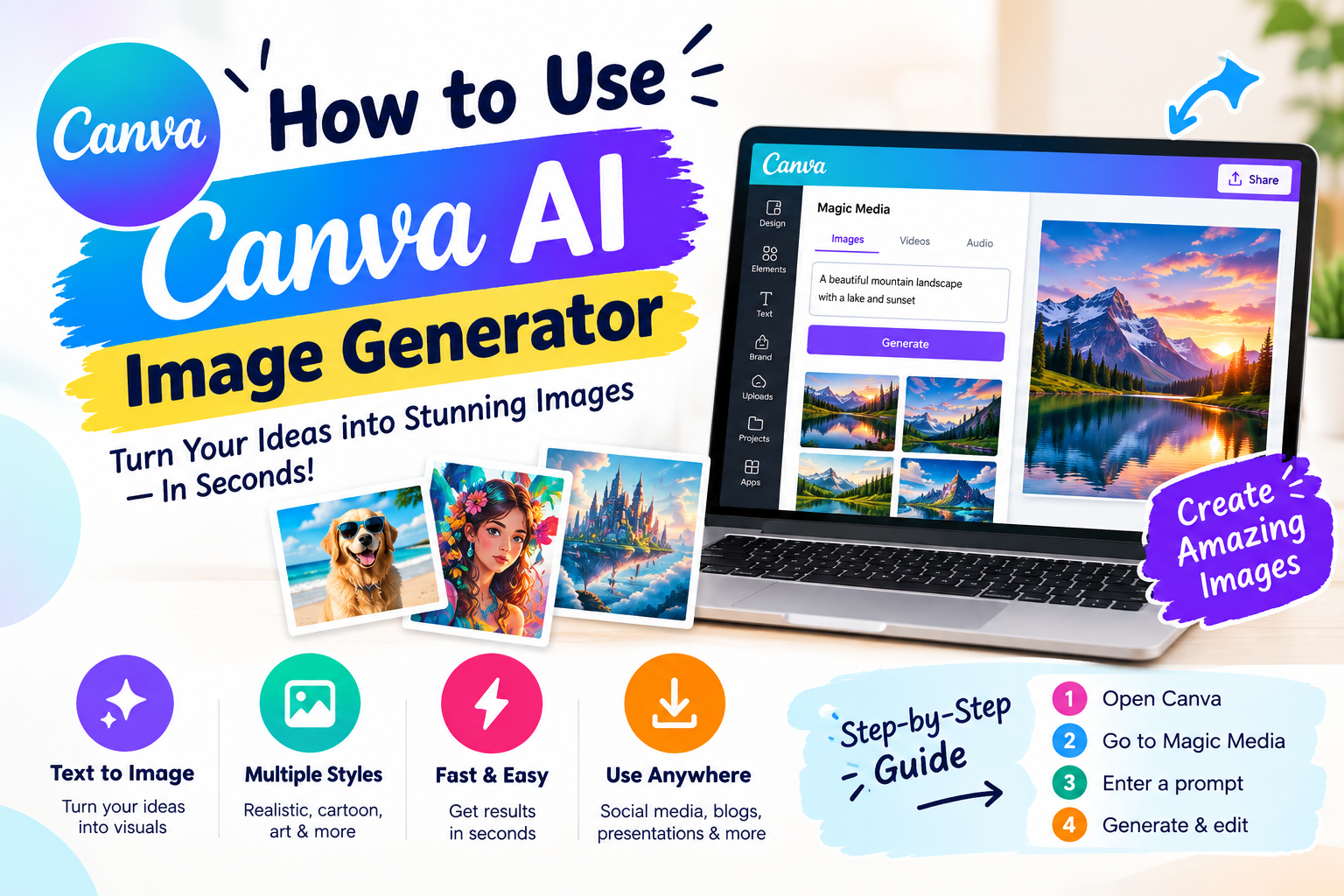
How to Use the Canva AI Image Generator in 2026 — Magic Media, Dream Lab & Everything In Between
Canva actually has two separate AI image tools — Magic Media and Dream Lab — plus a shared credit system that catches most users off guard, and a conversational AI layer added in 2026 that works differently from either. This guide covers all three: which one to use when, how the credit system actually works, and where Canva’s AI genuinely falls short.
📋 Table of Contents
- Magic Media vs Dream Lab — What’s the Difference?
- The AI Credit System Explained (Most People Get This Wrong)
- Step-by-Step: How to Use Magic Media
- Step-by-Step: How to Use Canva Dream Lab
- All Canva Magic Studio AI Tools (2026)
- Canva AI 2.0 — The New Conversational Interface
- Prompt Templates That Work (Copy & Use)
- Free vs Pro — What You Actually Get
- Can You Use Canva AI Images Commercially?
- When Canva AI Isn’t Enough — Better Alternatives
- Frequently Asked Questions
Magic Media vs Dream Lab — What Is the Difference?
Most Canva users don’t realise there are actually two separate AI image generators inside Canva. Knowing which one to use — and when — is the single most useful thing in this guide.
🎨 Canva Dream Lab
- More advanced image generation engine
- Powered by Phoenix architecture (Leonardo.ai tech)
- Higher image quality and more creative control
- Style Transfer — match a reference image’s aesthetic
- Dedicated interface at canva.com/dream-lab
- ~5 free generations/month from the shared Premium pool
- Best for: High-quality visuals, creative campaigns
⚡ Canva Magic Media
- Built into the Canva editor sidebar
- Faster, simpler — one-prompt image generation
- Also generates text-to-video (4-second clips)
- Multiple style options (Photo, Painting, 3D, etc.)
- Draws from the same shared Premium pool as Dream Lab
- Best for: Quick social media images, fast workflow
The AI Credit System Explained — Most People Get This Wrong
The most common frustration with Canva AI in 2026 is running out of allowance unexpectedly. Here’s why — and why a lot of guides describing this get it slightly wrong.
The key thing most guides skip: Canva’s own pricing page describes the free tier as one shared pool — up to 200 Standard AI uses OR 20 Premium AI uses per month, not both added together. Standard covers lightweight tools like basic Magic Write; Premium covers the heavier tools — Magic Media, Dream Lab, Magic Edit, Magic Expand. Every Premium action pulls from the same 20-use monthly ceiling, so a handful of Dream Lab generations and a couple of Magic Edit touch-ups in the same week can exhaust it fast.
Canva’s AI Allowance Tiers (September 2026)
Standard AI Tools
Use the least allowance. Examples: basic Magic Write, auto-resize, basic templates. Free: up to 200/month.
Premium AI Tools
Use more allowance. Examples: Magic Media image generation, Magic Edit, Magic Expand, Dream Lab. Free: up to 20/month, shared with Standard as one pool.
Ultra AI Tools
Use the most allowance by a wide margin. Examples: Canva AI 2.0 conversational interface, text-to-video. Not available on the free plan at all — this tier is Pro and above only.
👉 Swipe to see all columns
| Feature | Canva Free | Canva Pro (~$15/mo) |
|---|---|---|
| Standard AI uses | Up to 200/month | Up to ~2,000/month |
| Premium AI uses (Dream Lab, Magic Media, Magic Edit) | Up to 20/month, shared | Up to ~200/month |
| Ultra AI uses (Canva AI 2.0, video) | Not available | Up to ~20/month — drains fastest |
| Video Generation | 5 LIFETIME total (not monthly, separate pool) | Drawn from Ultra tier — drains fast |
| When limit hit | Wait until next monthly reset | Wait for reset within whichever tier is exhausted |
| Storage | 5 GB | 1 TB |
| Templates | 250,000+ included | 250,000+ plus premium templates |
| Commercial use | ❌ Not permitted | ✅ Included |
| Price | Free | ~$15/month most commonly cited — some trackers report a push toward $18/month; confirm at checkout |
Step-by-Step: How to Use Canva Magic Media
Magic Media is the fastest way to generate an AI image directly inside your Canva design.
Open Canva and start or open a design
Go to canva.com and sign in or create a free account. Open any new or existing design — Magic Media works inside any canvas, whether it’s a social post, presentation, or custom size.
Find Magic Media in the left sidebar
Click Apps in the left sidebar, then search for Magic Media. You can also find Generate image directly in the Elements menu. It appears in your recently used apps once you’ve opened it once.
Write your image prompt
Be specific — a detailed 15–25 word prompt produces noticeably better results than a 3-word one. Include:
- Subject — what or who is in the image
- Setting — where it takes place or what the background is
- Style — photorealistic, watercolor, 3D render, flat design, etc.
- Lighting — golden hour, studio light, soft natural light, dramatic shadows
- Mood or atmosphere — cozy, dramatic, minimalist, energetic
Select a style
Below the prompt box, choose from Canva’s available image styles:
- Photo — photorealistic look, best for lifestyle and product imagery
- Painting — artistic, brush-stroke aesthetic
- 3D — rendered three-dimensional look
- Illustration — graphic, flat-design aesthetic
- Anime — Japanese animation style
- None — let the AI interpret your prompt without a forced style
Click Generate and choose your result
Click Generate. Magic Media produces 4 image variations in roughly 10–15 seconds. Click any image to add it directly to your canvas. Generating again for four new variations does consume additional allowance from the shared Premium pool.
Edit using other Magic Studio tools
Once your image is on the canvas:
- Magic Edit — Brush over any area and describe what you want changed
- Magic Eraser — Brush over any object to remove it
- Magic Expand — Extend the image beyond its original borders using AI
- Background Remover — One click removes the background (Pro feature)
- Magic Grab — Extract any element from the image for use elsewhere
Step-by-Step: How to Use Canva Dream Lab
Canva Dream Lab is Canva’s more advanced AI image generator. It produces higher-quality output than Magic Media and includes Style Transfer — matching new images to the visual style of a reference photo. Independent testing published in April 2026 rated Dream Lab’s output above the now-retired DALL-E 3 but behind Midjourney V7 — a reasonable way to calibrate expectations, though DALL-E 3 itself no longer exists as a comparison point since OpenAI retired it in May 2026.
Access Dream Lab
Go directly to canva.com/dream-lab, or search “Dream Lab” in Canva’s Apps panel from within any design.
Write a detailed prompt
Dream Lab benefits from more detailed prompts than Magic Media. Include the subject, environment, colour palette, lighting, composition, and mood. See the prompt templates section below for starting points.
Use Style Transfer (optional)
Upload any reference image — a photo, an illustration, a painting — and Dream Lab generates new images matching its aesthetic and colour palette. Useful for keeping a consistent visual style across a content series or brand.
Generate and refine
Click Generate. Results appear in 10–20 seconds. If the first batch doesn’t match your vision, add more detail about lighting, adjust the style description, or use Style Transfer for stronger direction. Each generation counts against the same shared Premium pool covered above (~20 uses/month on Free) — so it’s worth refining the prompt before generating rather than after.
Add to your Canva design
Click any Dream Lab result to add it to your canvas. From there, the same editing tools apply — Magic Edit, Magic Expand, Background Remover, and so on.
All Canva Magic Studio AI Tools in 2026
Magic Studio is the umbrella name for all of Canva’s AI features. Here’s every tool in the suite, what it does, and which plan includes it.
👉 Swipe to see all columns
| Tool | 🎨 What It Does | 📋 Plan / Tier |
|---|---|---|
| Magic Media | Text-to-image and text-to-video generation inside the editor | Premium tier — Free (shared pool) + Pro |
| Dream Lab | Advanced text-to-image with Style Transfer; dedicated interface | Premium tier — Free (shared pool) + Pro |
| Magic Write | AI writing assistant for captions, copy, blog posts, scripts | Standard tier — Free + Pro |
| Magic Edit | Brush over any image area and describe what to change — AI replaces it | Premium tier — Pro |
| Magic Eraser | Remove any object from an image in one brush stroke | Premium tier — Pro |
| Magic Expand | Extend an image beyond its borders using AI | Premium tier — Pro |
| Magic Grab | Extract any element from an image for reuse | Premium tier — Pro |
| Magic Morph | Describe changes to an existing element — AI modifies it in place | Premium tier — Pro |
| Magic Animate | Auto-animate any static design element | Standard (basic) + Premium (advanced) |
| Magic Resize / Switch | Resize any design for a different platform in one click | Pro |
| Background Remover | One-click background removal from any photo | Pro |
| Magic Design | Describe a design and get a complete formatted template in seconds | Premium tier — Pro |
| Magic Layers | Separates flat images into editable AI layers — advanced editing | Pro — Premium tier, higher allowance cost |
| Canva AI 2.0 | Conversational design interface — describe multi-step designs in text or voice | Ultra tier — Pro and above only |
| Affinity AI (Generative Fill) | Professional-grade AI editing inside Affinity Photo/Designer (now free software) | Pro — Premium tier |
Canva AI 2.0 — The New Conversational Interface (2026)
The biggest change to Canva’s AI in 2026 is Canva AI 2.0 — a conversational design interface where you describe what you want in plain text or voice, and Canva builds an editable design instead of a flat image. Describe a flyer, a carousel, or a slide deck, and it lays out fonts, colours, and placeholder content automatically, pulling from your brand kit if you have one.
It’s a drafting tool, not a finishing tool. What it produces is a real starting layout you’re expected to adjust — spacing, copy, image choices — rather than a polished final design. Treat it as a way to skip the blank-page problem, not as a replacement for actually designing the thing.
Prompt Templates That Work — Copy & Use These
The prompt matters more than the tool. Here’s the formula that produces consistently good results, plus copy-paste templates.
🔑 The Canva AI Prompt Formula
[Subject + action] + [setting or background] + [art style] + [lighting] + [mood or quality descriptor]
Template 1 — Social Media Post Background
Setting: white marble table, cream linen napkin, small succulent plant
Style: photorealistic product photography
Lighting: soft natural window light from the left
Quality: clean minimal composition, high resolution
Template 2 — YouTube Thumbnail Background
Template 3 — Blog Header Illustration
Template 4 — Product Background
Template 5 — Instagram Story Background
Canva AI Free vs Pro — What You Actually Get
The Canva free plan is more generous than most people realise — until you hit its limits. On the free plan, Canva’s own pricing page describes the allowance as up to 200 Standard AI uses or 20 Premium AI uses per month — one shared pool, not two separate budgets. Magic Media and Dream Lab both draw from the Premium side of that pool, which is why heavy image-generation days can burn through your entire monthly allowance in a single session. Casual users rarely hit the ceiling; regular creators often hit it within a couple of weeks.
Canva Pro — most commonly cited at $15/month, though some 2026 trackers report a push toward $18/month, so confirm the rate at checkout — raises each of the three tiers roughly 10x (reported figures: up to ~2,000 Standard, ~200 Premium, ~20 Ultra uses/month), plus Brand Kits, private folders, 1TB storage, premium templates, Background Remover, and full Magic Studio access including Magic Edit, Magic Expand, and Canva AI 2.0. It also unlocks Affinity AI features — Canva acquired Affinity (Photo, Designer, Publisher) in 2024 and made the base software free in 2026, and Affinity’s AI tools (Generative Fill, AI Vector generation) draw from the same Premium allowance.
Can You Use Canva AI Images Commercially?
Only on paid plans. This is one of the most important things to know about Canva AI image generator commercial use.
- ✅ Canva Pro and above — includes commercial usage rights for AI-generated images
- ❌ Canva Free — AI-generated images cannot be used commercially per current terms of service
- ⚠️ Canva does not offer IP indemnification — unlike Adobe Firefly, Canva doesn’t legally stand behind its AI-generated images for enterprise commercial use. For client work or paid advertising, this distinction matters.
When Canva AI Is Not Enough — Better Alternatives
Canva AI is strong for an integrated design workflow. But a few situations call for a dedicated AI image generator instead:
Leonardo AI — Best for Higher Quality Free Images
150 free tokens daily, 10+ AI models, a Canvas editor with inpainting, and photorealistic results that noticeably exceed Canva Magic Media quality. Better when image quality is the priority and you don’t need Canva’s design templates. See our full Leonardo AI guide.
Ideogram — Best for Text Inside Images
Canva AI struggles with rendering text inside generated images. If a thumbnail or poster needs specific readable words baked into the image itself, Ideogram is the more reliable free option. 10 free credits/week.
Adobe Firefly — Best for Commercial Safety
For designers and enterprise users who need the strongest commercial protection and highest image quality. Trained on licensed Adobe Stock content, with IP indemnification. Free account gives roughly 25 credits/month. See our Canva vs Firefly comparison.
Microsoft Copilot — Best Free Quality Outside Canva’s Ecosystem
15 fast generations per day, no watermarks, no new account needed if you already have a Microsoft login. One correction worth flagging: this is no longer DALL-E 3 — OpenAI retired that model in May 2026, and Copilot now runs a newer OpenAI image model. Output quality is still a fast path to strong free AI images outside Canva. Full list in our best free AI image generators guide.
Frequently Asked Questions — Canva AI Image Generator
Is the Canva AI image generator free?
Yes, with tight limits. Canva’s own pricing page describes the free tier as a single shared pool: up to 200 Standard AI uses or 20 Premium AI uses per month. Dream Lab and Magic Media both draw from the Premium side, commonly cited around 5 Dream Lab generations specifically. Video generation is separate: 5 lifetime credits total, not monthly. Canva Pro (commonly $15/month, though confirm the current rate) raises the allowance roughly 10x.
What is the difference between Canva Magic Media and Dream Lab?
Magic Media is Canva’s built-in text-to-image and text-to-video generator, accessible from the left sidebar of any design. It’s faster and simpler. Dream Lab is Canva’s more advanced image generator with a dedicated interface at canva.com/dream-lab, better image quality, and Style Transfer. Both draw from the same shared Premium allowance, so using one heavily leaves less room for the other.
Can I use Canva AI generated images commercially?
Only on paid plans. Canva Pro and Teams/Business plans include commercial usage rights for AI-generated images. Free tier AI images cannot be used commercially under Canva’s current terms of service. Canva does not offer IP indemnification — for high-value commercial campaigns, Adobe Firefly provides stronger legal protection.
How do I write better prompts for Canva AI?
Use this formula: [subject + action] + [setting] + [art style] + [lighting] + [mood or quality]. Be specific. Instead of “a coffee cup” write “a ceramic coffee mug on a white marble table, soft natural light from a window, photorealistic product photography, clean minimal composition.” Choose a matching style option, or None if your prompt already specifies the style. See the prompt template section above for copy-paste examples.
What is Canva AI 2.0?
A conversational design interface added in 2026. You describe what you want in text or voice — “create a 10-slide pitch deck in our brand colours” — and Canva builds an editable draft design. It’s a starting point you refine, not a finished output. It sits in the Ultra AI tier — the smallest, fastest-draining allowance — and isn’t available on the Free plan at all.
Does Canva AI add watermarks to generated images?
AI-generated images from Canva don’t carry traditional visual watermarks. But if your finished design includes any Pro elements — templates, stock photos, or fonts — downloading it on a free plan adds a Canva watermark to the export. The AI-generated image itself is clean; the watermark comes from other paid elements in the same design.
What is Canva Dream Lab and is it worth using?
Canva’s advanced AI image generator at canva.com/dream-lab. It produces higher-quality images than Magic Media and includes Style Transfer — upload a reference image and Dream Lab generates new images matching its aesthetic. It’s powered by a model built on Leonardo.ai’s Phoenix architecture. Independent testing in April 2026 rated it above the now-retired DALL-E 3 but behind Midjourney V7. Worth using for work where quality matters, but the shared free allowance only covers around 5 generations a month, so save them for your best prompts. For more generous higher-quality generation, Leonardo AI (150 free tokens/day) or Adobe Firefly (roughly 25 credits/month) are stronger dedicated alternatives.
🎨 Ready to Start Creating with Canva AI?
Start free: canva.com — no credit card, 250,000+ templates
Try Dream Lab: canva.com/dream-lab — free within the shared Premium allowance
Want even better free images? See our full free AI generator ranking →
More AI tool guides at CrixPix.com.