

How to Use Claude AI in 2026 (Beginner’s Guide)
If you’re trying to figure out how to use Claude AI, here’s the short version: sign up, type a message, and you’re already using it. The part worth slowing down for is everything after that first message — what the free plan actually includes, which features are easy to miss, and how to phrase a prompt so you don’t have to ask twice. That’s what this guide covers.
You don’t need any prior experience with AI tools, and you don’t need a credit card to start.
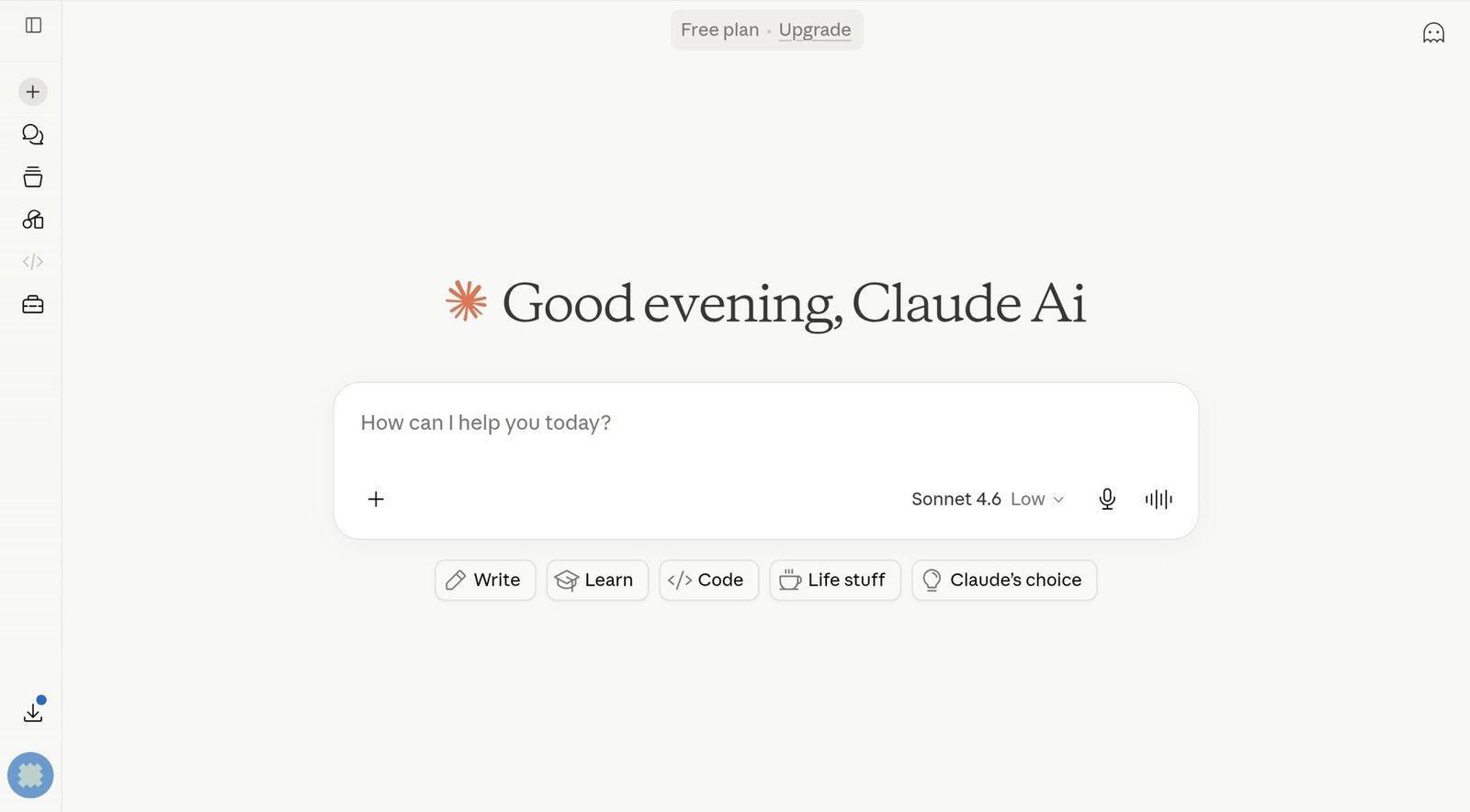
Claude.ai — Anthropic’s AI chatbot, free to use with no credit card required.
What Is Claude AI?
Claude is the AI assistant built by Anthropic, a company founded in 2021 by Dario Amodei, Daniela Amodei, and a group of former OpenAI researchers focused on AI safety. You use it at claude.ai, and signing up doesn’t require a card on file.
Anthropic runs several model tiers under the hood. Haiku handles fast, lightweight tasks. Sonnet is the balanced workhorse model, and Opus is the highest‑capability tier for complex work. Model versions change frequently — always check claude.ai for the latest default model.
What Claude tends to get praised for is depth. Ask it something that requires actually working through a problem — not just pattern‑matching a quick reply — and the difference shows up in how the answer is structured. That’s most noticeable in writing, research, and pulling insight out of long documents.
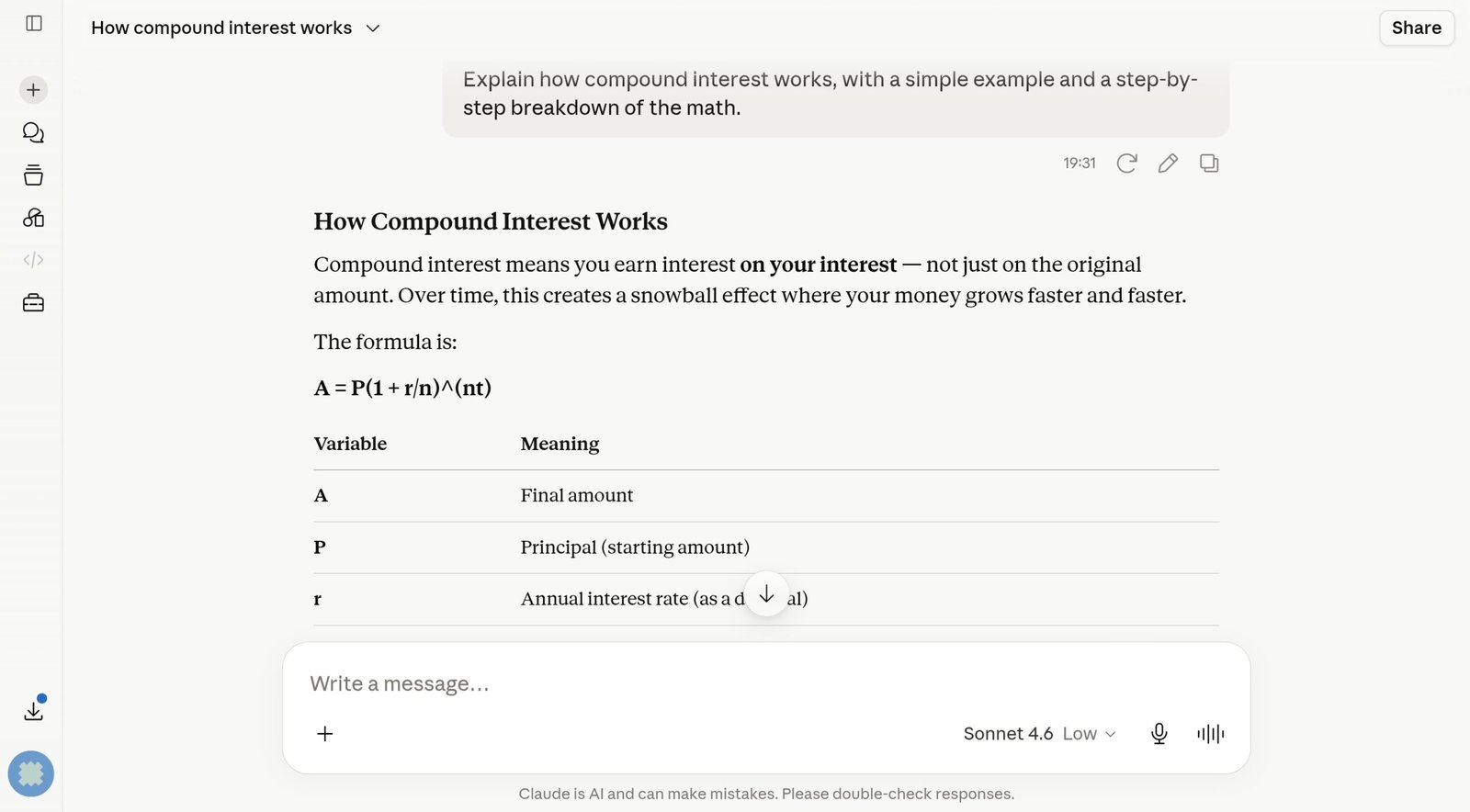
Claude’s chat interface — clean, no ads, and responses tend to be more thorough than many competing tools.
How to Sign Up for Claude AI Free (Step by Step)
This takes about two minutes. No trial period, no card required up front — the free plan stays free with no countdown attached.
- 1Go to claude.ai. You’ll land on a plain interface with a chat box at the bottom.
- 2Click “Sign up” top right, then create an account with email, Google, or Apple ID.
- 3Verify your email if that’s the route you picked. The link usually shows up within a minute.
- 4Send a message. Type something in the chat box and press Enter.
Claude has a free app on both iOS and Android — search “Claude AI” in either app store. It’s the full product, not a stripped‑down mobile version, and your account stays in sync between the app and the browser.
What the Claude AI Free Plan Actually Includes in 2026
The free plan covers more than most $0 AI tiers do. Here’s what’s included without paying anything:
- Current Sonnet model. The default model on free accounts — a fully working model, not a stripped‑down version meant to push you toward upgrading.
- Memory across conversations. Claude can remember your name, preferences, writing style, and ongoing project context across separate chats. You can review, edit, or delete anything it’s stored from Settings.
- Web search. Toggle it on in the chat bar and Claude pulls in live results with inline citations.
- File uploads. PDFs, Word docs, spreadsheets, images, code files — Claude reads and works with them directly in the chat.
- Basic Projects. Free accounts can set up a Project with custom instructions and a smaller set of uploaded files. Pro and Max raise the file limits.
- Artifacts. Claude can produce standalone outputs you can view and download right in the chat — formatted documents, working HTML/CSS, React components, SVGs, interactive charts.
- Code execution. Claude can actually run code in the conversation, not just print it out.
- File creation. Claude can export real Word, Excel, PowerPoint, and PDF files directly from a chat.
- Skills and remote connectors. Packaged, reusable instructions for specific tasks (Skills) and links to outside apps like Slack, Notion, and Google Workspace (Connectors).
- Usage limits that reset on a rolling 5‑hour window rather than a fixed daily cap. Anthropic doesn’t publish an exact message count — it shifts with server load — but casual to moderate daily use rarely bumps into it.
You do need an account — there’s no guest or anonymous mode. Sign up with email, Google, or Apple ID. That’s mostly there so Anthropic can manage free‑tier usage fairly and keep the limits from being abused.
How to Get Good Results from Claude AI Right Away
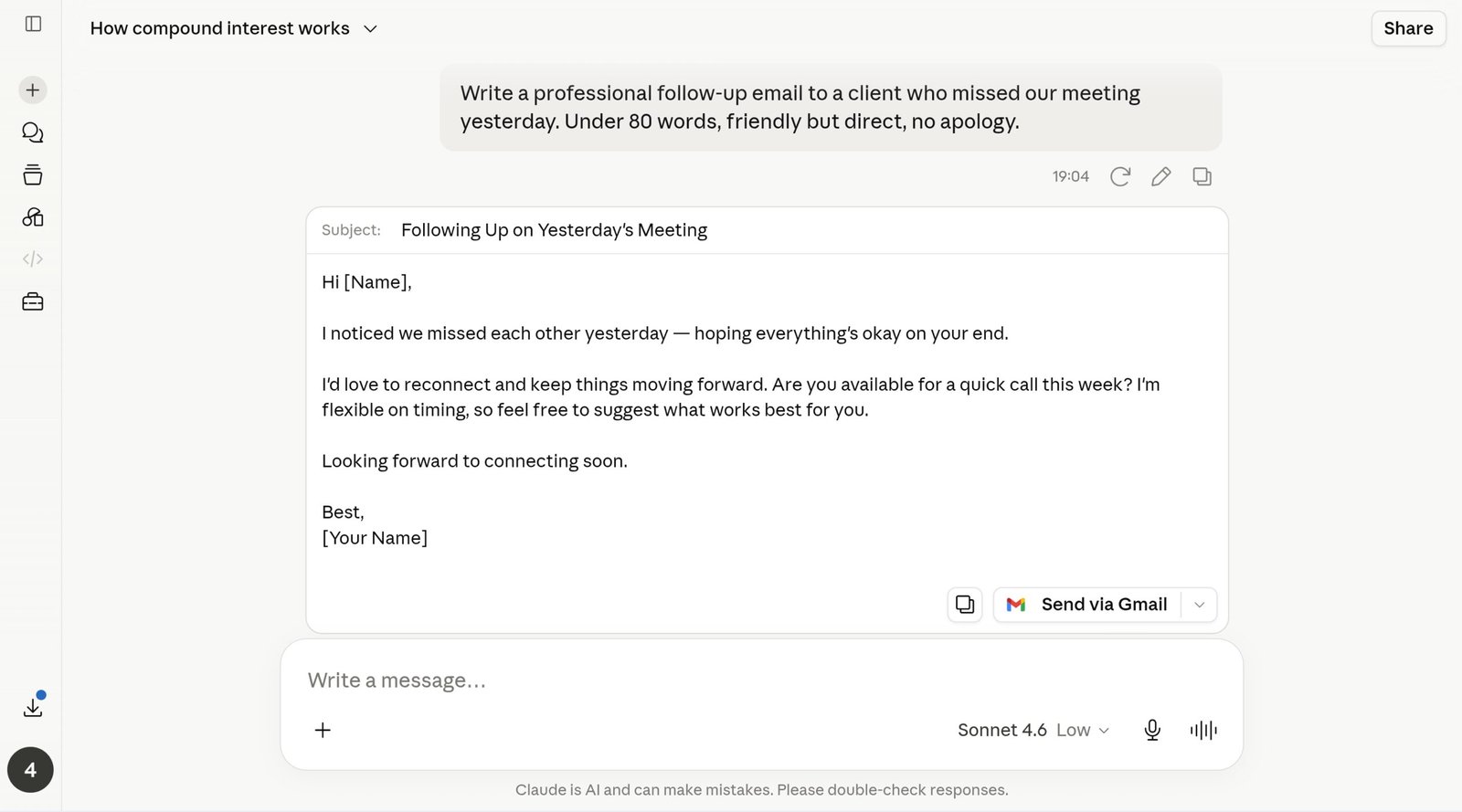
A specific prompt and a vague one can produce very different output from the same model.
The mechanics couldn’t be simpler — type, hit Enter, read the answer. Where people get a mediocre result is usually the same place: they don’t give Claude enough to work with. It can’t read your mind, so the gap between a so‑so answer and a genuinely usable one almost always comes down to context.
Compare “Write an email” to “Write a professional follow‑up email to a client who missed our meeting yesterday. Under 80 words, friendly but direct, no apology.” The second one takes maybe ten extra seconds to type. What comes back is something you could send without editing it first.
A few small habits make an outsized difference. Giving Claude a role up front — “you are an experienced copywriter,” for instance — before asking for ad copy shifts the tone and depth of what comes back. Format instructions get followed reliably too: ask for a table, bullet points only, or a word limit, and Claude sticks to it. And once you have a first draft, asking for a specific improvement — “rewrite the weakest paragraph,” “tighten the opening,” “cut this by a third” — almost always beats the original attempt. Build that second pass into how you use Claude and the quality jump is noticeable.
Key Claude AI Features Every Beginner Should Know About
Claude has grown well past a basic chatbot. These are the features that change how useful it is day to day:
Claude Cowork: The Feature Most Beginner Guides Miss Entirely
Every feature above is available on the free plan. Claude Cowork isn’t — and because it’s genuinely new, most beginner guides to Claude either don’t mention it or describe it inaccurately. Here’s what it actually is.
Cowork is an agent workspace, not a chat mode. Instead of a back‑and‑forth conversation, you hand Claude a multi‑step task that spans your files, connected apps, and integrations, and it works through it — checking in at decision points rather than waiting for you to prompt every step. Think “organize this folder of client invoices and flag anything that doesn’t match last month’s totals,” not “write me an email.”
It’s included at no extra charge on every paid plan — Pro, Max, Team, and Enterprise — but it’s not part of the Free plan. It runs in the Claude Desktop app on macOS and Windows, and on web and mobile for Pro, Max, and Team specifically.
If you’re still on the free plan doing everyday chat, research, or writing, Cowork isn’t something you’re missing out on for typical use. It matters once your work involves multi‑step tasks across several files or apps at once — the kind of thing you’d otherwise do manually across a dozen browser tabs. If that describes your workflow, it’s a real reason Pro’s $20/month can pay for itself, separate from the usage‑limit argument covered below.
Why Claude Sometimes “Forgets,” Contradicts Itself, or Gets Worse Mid‑Conversation
This is the part most guides never explain, and it’s the thing that actually frustrates people once they’ve moved past the basics. Claude re‑asks something you already told it three messages ago. It contradicts an instruction you gave at the start of a long chat. The quality of the answers quietly drops the longer the conversation runs. None of that means the model broke — it’s a predictable side effect of how long conversations work, not a Claude‑specific flaw.
Inside any large language model’s context window, attention isn’t spread evenly across everything you’ve said. Information near the start of a very long conversation, or buried in the middle of a sprawling back‑and‑forth, tends to get weighted less reliably than your most recent messages. Researchers call this the “lost in the middle” effect, and it shows up across every major model, not just Claude. A large context window means Claude can technically hold a huge amount of text — it doesn’t mean every part of that text gets treated with equal precision.
It’s also worth separating two things people regularly mix up: Memory carries facts about you — preferences, name, ongoing projects — between separate conversations. It doesn’t carry the specific reasoning chain or fine details of whatever you’ve been hashing out in today’s long chat. Memory and in‑chat context solve different problems, and assuming Memory will remember something buried deep in an hours‑long conversation is a common, avoidable mistake.
When a conversation gets close to the context limit, Claude can now automatically summarize earlier messages so the chat keeps going instead of cutting off, and your full history stays available for it to reference even after that summary happens. That solves running out of room — it doesn’t fully solve the attention‑dilution problem above, since a summarized version of an earlier exchange still carries less detail than the original. Long chats are smoother than they used to be, but a focused new chat still beats one that’s sprawled across dozens of unrelated turns.
Keep going in the same chat if: you’re still on the original task, the conversation has stayed under roughly 30–40 exchanges, and Claude is still referencing earlier details accurately.
Start a fresh chat if: you’ve noticed Claude repeating a question you already answered, contradicting an earlier instruction, the topic has shifted twice since you started, or you’ve uploaded several large files and responses are starting to feel less precise. Paste back only the specific details that still matter — not the whole history.
One more practical point: every file you upload counts against the same context budget as your conversation. Drop in a 300‑page PDF when you only need page 40, and you’ve quietly used up room that would otherwise go toward keeping the rest of the conversation sharp. When you only need a section, paste that section instead of the whole document.
How to Use Claude AI Projects (The Feature Most Beginners Skip)
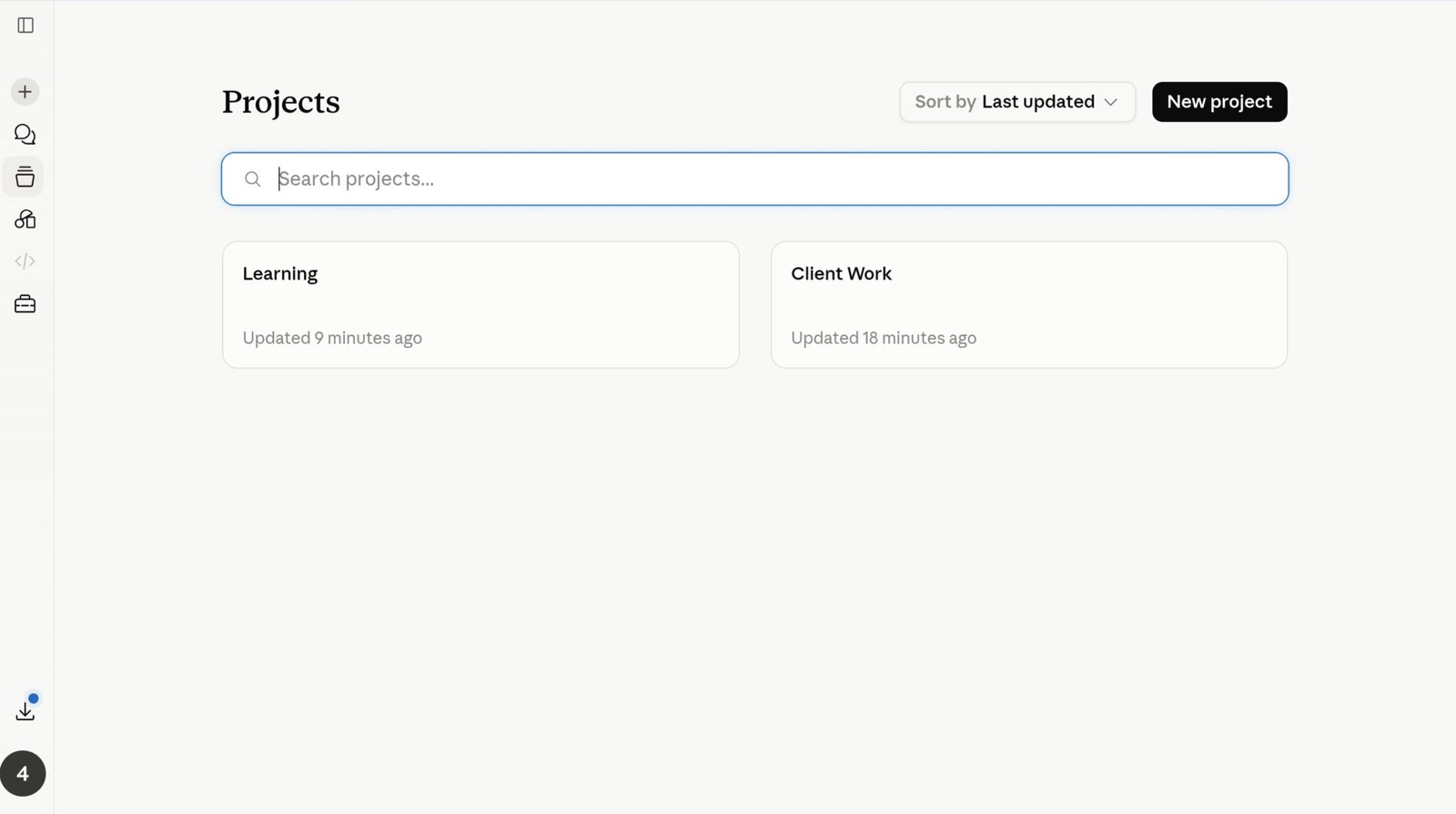
Claude Projects — write your instructions once, upload your files once, and every new chat inside that workspace starts with the context already loaded.
A basic version of Projects is available on the free plan now, and it’s one of the most underused features there is. Setup takes a few minutes, and it keeps paying off every time you start a new chat inside it. If you outgrow the free file limits, Pro and Max expand the room you have to work with.
The idea is simple: create a workspace, tell Claude what it should know about you and how you like to work, and upload any files that are relevant. Every conversation started inside that Project opens with all of that already loaded — nothing to re‑explain, nothing to re‑paste.
A few practical ways people use this:
- Writing Project. Set the instructions once — “direct, conversational tone, no filler, no exclamation points, under 150 words unless I ask for more” — upload a brand guide if you have one, and every piece of writing produced inside that Project stays consistent without extra effort.
- Study Project. Upload your notes, textbook PDFs, or lecture slides, then ask Claude to quiz you or walk through specific concepts. It’s already working from the material — you just ask.
- Work Project. Upload your company’s style guide or product docs, then ask Claude to draft emails or support replies that match your brand voice, grounded in your actual content instead of a guess.
Set up a separate Project for each part of your work — writing, research, client work, coding. The instructions do most of the heavy lifting, so every future chat inside that Project skips straight to the task. Check claude.ai/upgrade for current file limits by plan, since Anthropic adjusts these from time to time.
Claude AI vs ChatGPT: An Honest Comparison for Beginners
This question comes up constantly, and there’s no single right answer — it depends on what you’re actually using AI for. Here’s where the two free plans differ in practice:
| Feature | Claude AI (Free) | ChatGPT (Free) |
|---|---|---|
| Default model | Current Sonnet model | OpenAI’s current free‑tier default — check chatgpt.com |
| Writing quality | Excellent — nuanced, structured, natural | Very good — polished and consistent |
| Memory (free plan) | ✓ Available | ✓ Available |
| Web search (free) | ✓ Toggle in chat bar | Available with limitations |
| File uploads (free) | ✓ PDFs, images, docs | ✓ PDFs, images, docs |
| Ads on free plan | ✓ No ads (ad‑free) | Check current status — may show ads on some free accounts |
| Context window | Large (varies by model/plan) | Smaller on free; larger on paid plans |
| Paid plan starting price | $20/month (Pro) | $20/month (Plus) |
| Best use case | Writing, research, long documents, multi‑step tasks | Coding tools, integrations, agent tasks |
For writing quality and working through long material, Claude tends to come out ahead. ChatGPT’s strength is its integration ecosystem — a much wider range of connected apps, dedicated coding tools, and agentic features on paid tiers. Plenty of people use both for different jobs, which is easy enough when both have workable free plans.
Claude AI Free vs Pro vs Max: Do You Actually Need to Pay?
Claude Pro costs $20 a month billed monthly, or roughly $17 a month if you pay annually. Above Pro sit two Max tiers for heavier use: Max 5x at $100/month and Max 20x at $200/month — same models as Pro, just 5× or 20× the usage ceiling, not a smarter tier. Here’s what changes at each level — always worth confirming the latest at claude.ai/upgrade since Anthropic updates plan details periodically:
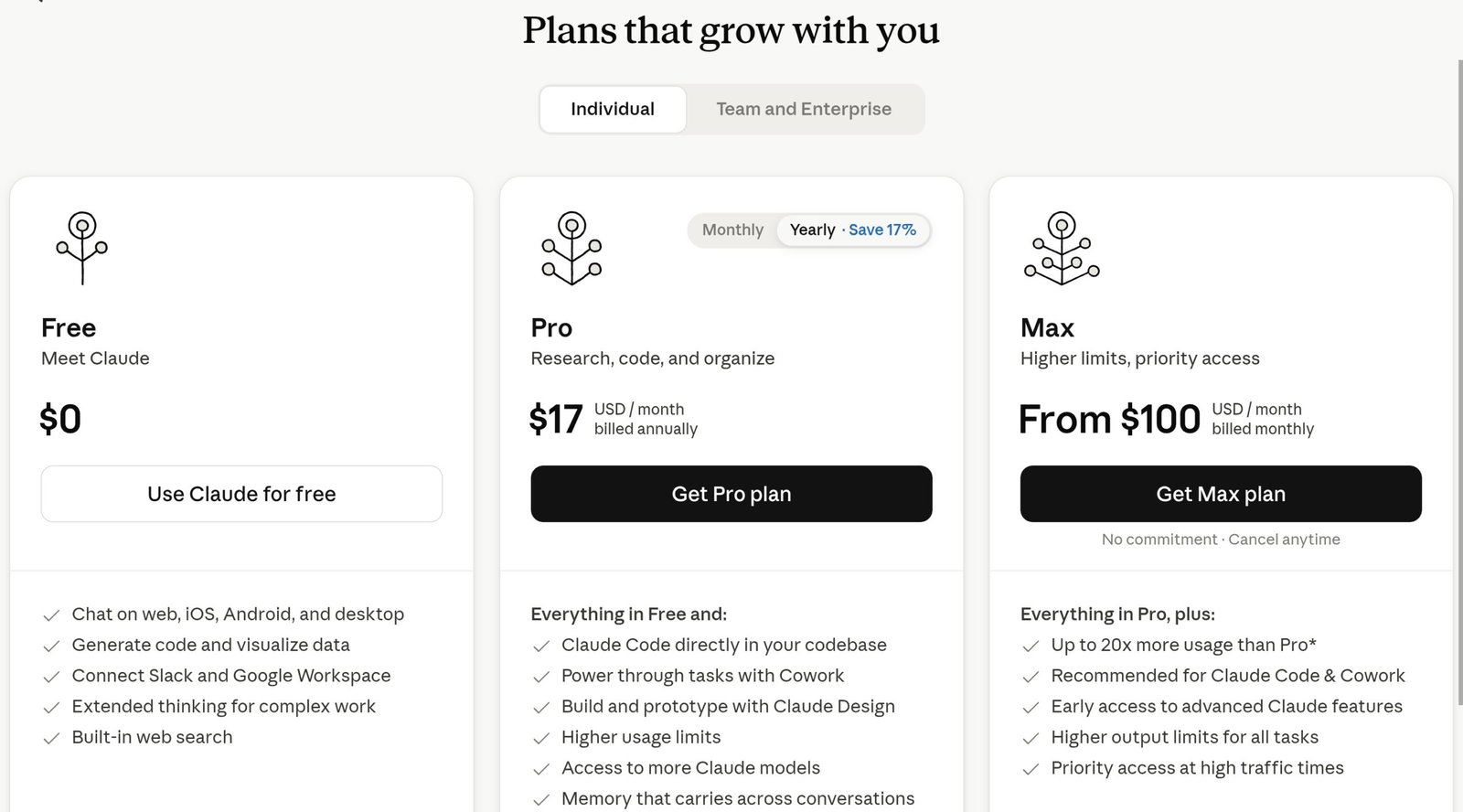
Claude’s pricing page — Free at $0, Pro at $20/month, and Max at $100 or $200/month for heavy users. Always verify current details at claude.ai/upgrade.
| Feature | Free ($0/mo) | Pro ($20/mo) |
|---|---|---|
| Default model | Current Sonnet model | Current Sonnet model |
| Memory across conversations | ✓ Included | ✓ Included |
| Web search | ✓ Included | ✓ Included |
| File uploads | ✓ Included | ✓ Included |
| Artifacts & code execution | ✓ Included | ✓ Included |
| Projects | Basic — fewer files | ✓ Higher file limits |
| Claude Cowork (agent workspace) | ✕ Not included | ✓ Included |
| Opus model access | ✕ Not included | ✓ Available on Pro/Max |
| Usage / message limits | Rolling 5‑hour reset | Significantly higher than free |
| Research mode | ✕ Not included | ✓ Included |
| Claude Code (CLI) | ✕ Not included | ✓ On Pro/Max — verify at claude.ai |
| Priority access at peak times | ✕ Not included | ✓ Included |
| Max plans | ✕ Not available | Max 5x — $100/mo · Max 20x — $200/mo |
Start on the free plan. Memory, web search, file uploads, basic Projects, Artifacts, and code execution are all included at $0 — none of it is a watered‑down demo built to push you into paying. For writing, research, studying, and document work, the free tier holds up fine for most people’s day‑to‑day use.
Pro tends to earn its $20 when you’re hitting the usage limit several times a week, need bigger file limits inside Projects, want Research mode for serious multi‑source work, need Opus for something that really benefits from it, or want Cowork for multi‑step work across files and apps. Max only makes sense once Pro’s usage ceiling itself — not any missing feature — is what’s slowing you down.
5 Claude AI Prompts for Beginners That Consistently Deliver
Each prompt below has three parts: a clear task, a format, and a constraint. That combination cuts out vague output more reliably than any other single habit. Fill in the brackets, send it, and you’ll usually get something usable on the first try. If the prompt involves current information, switch on web search before sending it.
1. Writing a First Draft
You are an expert [type of writer]. Write a [format: email / blog intro / LinkedIn post / cover letter] about [topic]. Tone: [friendly / professional / casual]. Length: under [X] words. Avoid filler phrases and generic openings.2. Analysing a Document or PDF
I've uploaded [document name]. Please: 1) Summarise the key points in 5 bullet points. 2) Identify the 3 most important takeaways. 3) Flag anything that seems unclear, contradictory, or worth questioning.3. Research with Web Search — Toggle Web Search On First
Search the web and give me a current, accurate summary of [topic]. Focus on the most recent information available. Include key facts, notable recent developments, and cite the sources you use.4. Improve Something You’ve Already Written
Here is something I've written: [paste your text]. Please: 1) Identify the weakest sentence and rewrite it. 2) Suggest one structural improvement. 3) Fix any grammatical issues. Keep my voice — don't over‑polish it.5. Brainstorm Ideas Fast
Give me 10 ideas for [goal or project]. Include a range — some safe, some more unconventional. For each idea, give me one sentence explaining why it could work. Be specific, not generic.After any of these, follow up with a second pass — “make this 30% shorter,” “rewrite the opening,” “make the tone more formal.” Claude handles multi‑turn editing well, and the second draft is almost always tighter than the first.
Frequently Asked Questions: How to Use Claude AI
Ready to Start? Here’s Where to Go First
Head to claude.ai, create a free account in a couple of minutes, and send your first message. Memory, web search, file uploads, basic Projects, Artifacts, and code execution are all available at $0 — nothing in this guide needs a paid plan to try.
If you end up using Claude regularly and want more room inside Projects, or find yourself wishing you could hand off a multi-step task instead of prompting through every step, that’s when Pro starts to make sense. Writing your instructions once and having Claude load them automatically in every relevant chat is the kind of small change that saves real time over a week. Check current plan details at claude.ai/upgrade — Anthropic updates features and limits fairly often.