
How to Use Leonardo AI: Complete Guide for 2026 (Free + Paid)
Most Leonardo AI guides online are at least partially out of date — they list models that are no longer the flagship, quote free-plan image estimates that only hold at the cheapest settings, and skip the fact that free-plan images are public by default, which matters a lot if you’re generating anything for client or professional work.
This guide walks through the current 2026 model lineup, what the free plan actually includes and excludes, and how to get more out of your daily token budget — whether you’re new to AI image generation or already comfortable with tools like Midjourney.
📋 Table of Contents
- What is Leonardo AI?
- Step 1 — Create Your Free Account
- Step 2 — Understand the Dashboard
- Step 3 — Generate Your First Image
- Step 4 — Choose the Right AI Model
- Step 5 — Key Settings Explained
- What the Free Plan Actually Gives You
- Step 6 — Write Better Prompts
- Step 7 — Download Your Image
- How to Use the Canvas Editor
- Leonardo AI Video Generation
- Common Mistakes Beginners Make
- Is Leonardo AI Safe?
- Pricing: Free vs Paid Plans
- Leonardo vs Midjourney vs ChatGPT
- Can I Use Images Commercially?
- Frequently Asked Questions
What is Leonardo AI?
Leonardo AI is a browser-based image generator that turns text descriptions into images. What sets it apart from simpler tools is control: a library of distinct AI models trained for different styles, a built-in Canvas editor for fixing specific parts of an image, image-to-image generation, video tools, and optional custom model training — all in one dashboard, no software installed.
Image Generation Digital Art AI Video Canvas Editor Image Upscaling Custom Model Training Image-to-Image iOS App Android App
Step 1 — Create Your Free Leonardo AI Account
Sign Up at leonardo.ai
- Open your browser and go to leonardo.ai
- Click “Get Started Free” on the homepage
- Sign up with your Google account, Apple ID, or email — no card required
- If you used email, verify it via the confirmation link
- Complete the short onboarding questions (about 30 seconds)
- You’re in the dashboard with 150 tokens ready to use
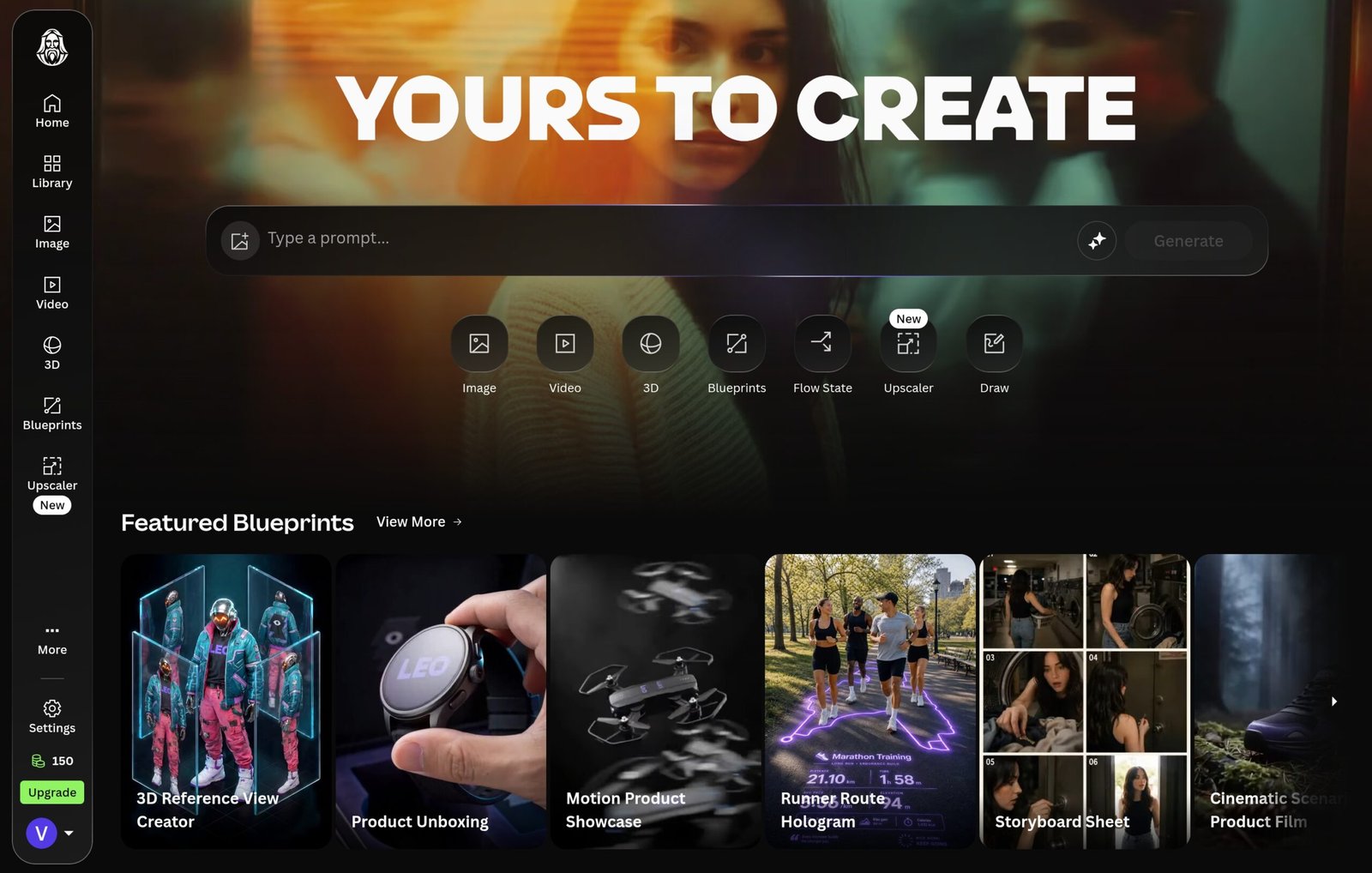
Step 2 — Understand the Leonardo AI Dashboard
The dashboard can feel busy at first. Here’s what each section does:
- Home — Has a quick-generate prompt box on the page itself, plus featured community images.
- Image Creation — The main generation workspace, where you’ll spend most of your time.
- Canvas — Editor for refining, extending, or selectively repainting generated images.
- Library / Personal Feed — Every image you generate is saved here automatically.
- Community Feed — Public images from other users, with their exact prompts visible.
- Token Counter — Shows remaining daily tokens. The exact cost of your current settings also appears on the Generate button before you click.
Step 3 — Generate Your First Image
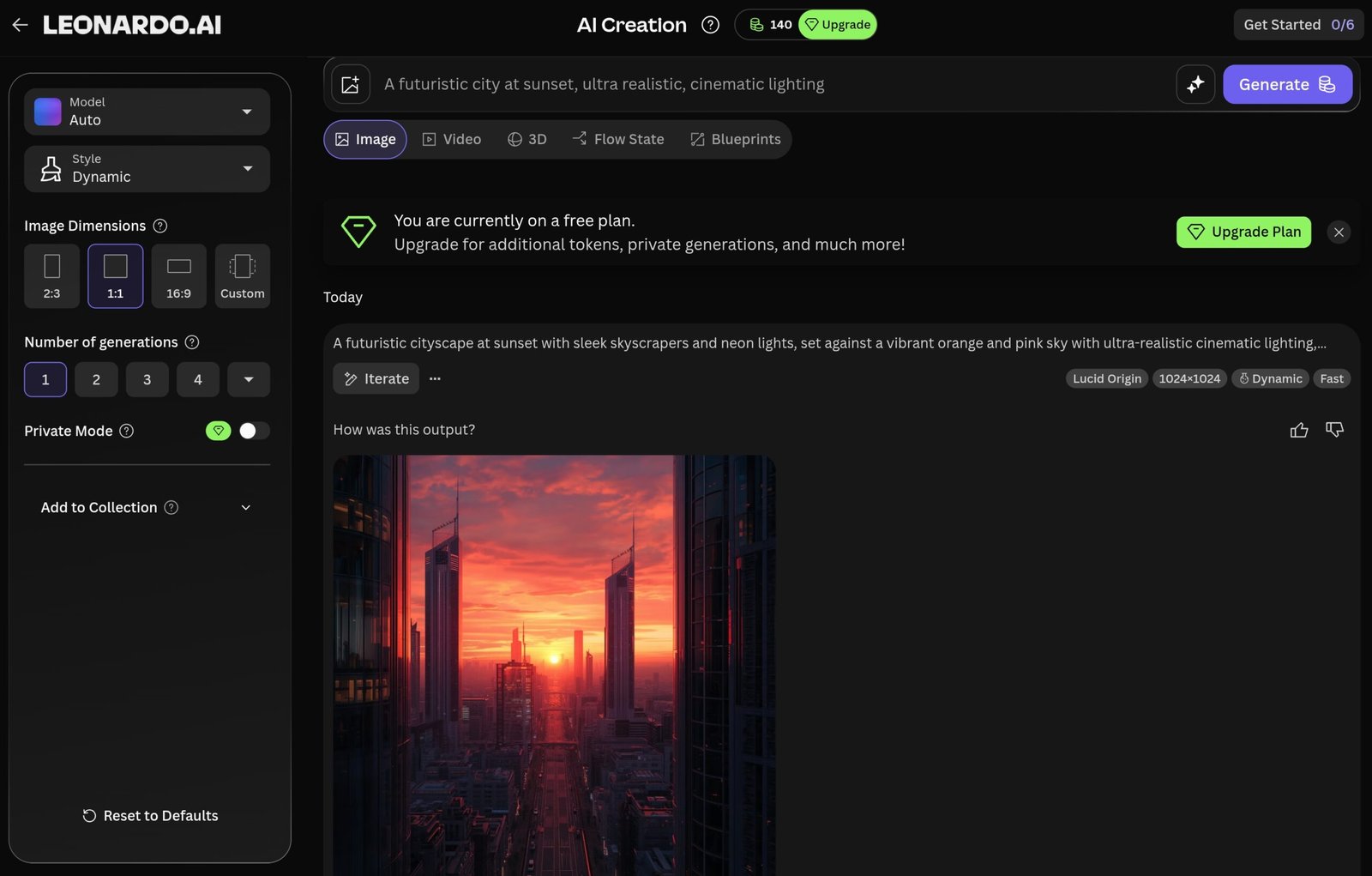
Create Your First AI Image
- Click Image Creation in the sidebar — or use the prompt box on the Home page
- Type your image description in the prompt bar
- Check the model, preset style, and dimensions in the left panel
- Click the orange Generate button
- Images appear below the prompt bar, usually within seconds in Fast mode
- Hover over any result for: Download, Upscale, Edit, Convert to Video
A beginner-friendly prompt to copy and try:
Step 4 — Choose the Right AI Model (Check Before You Generate — Model Lineups Change Often)
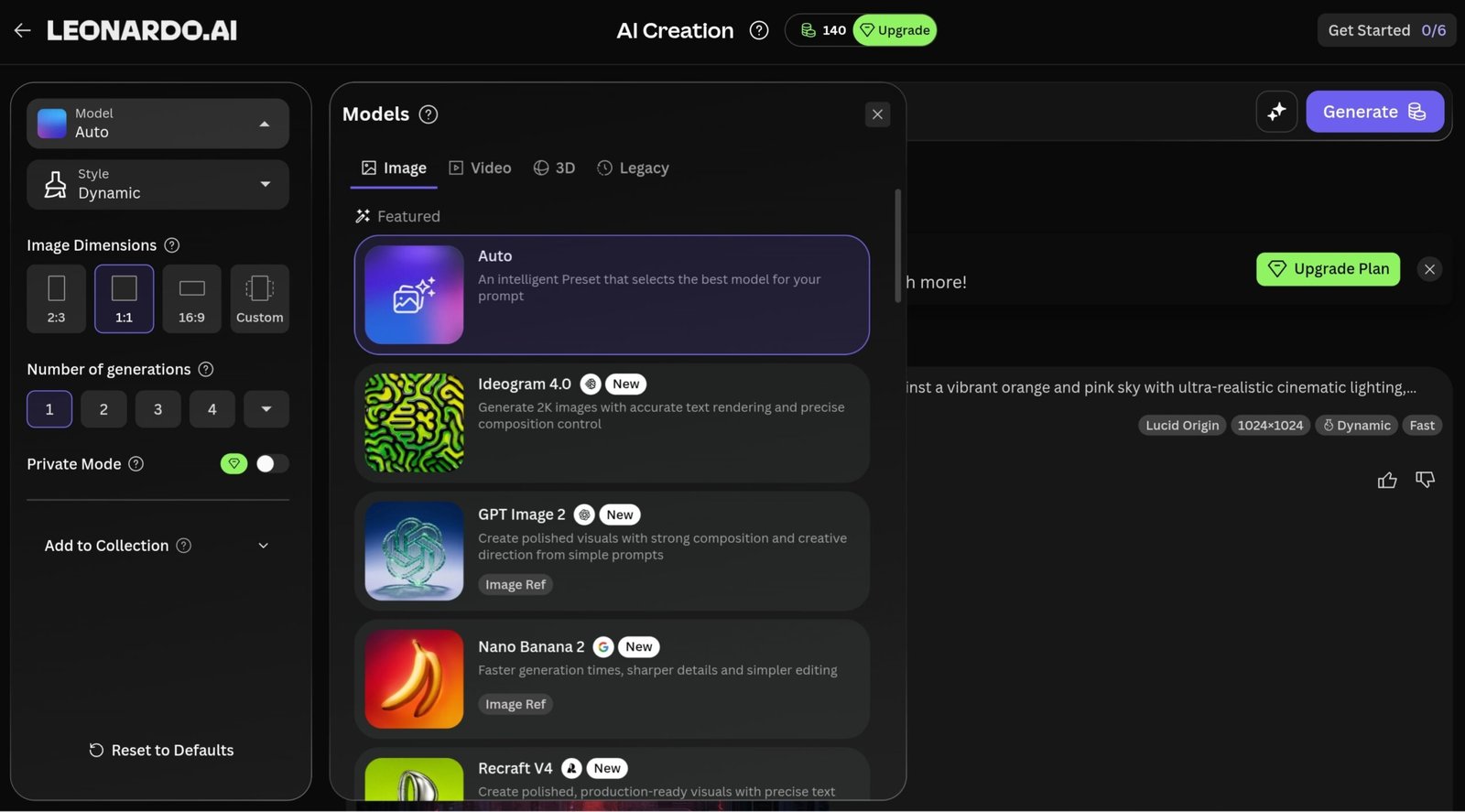
The model you pick affects output quality more than most beginners realize. Leonardo works as a multi-model hub — its own first-party models sit alongside integrated third-party models like Veo and Ideogram, all in the same dashboard. Leonardo adds and retires models more often than most guides update, so treat the table below as a snapshot, not a permanent lineup — the Models tab inside the platform always shows what’s actually live.
First-Party Leonardo Models
👉 Swipe to see all columns
| Model | Best For | Beginner? |
|---|---|---|
| Lucid Origin ⭐ Flagship | Leonardo’s most versatile model — vibrant, diverse imagery in Full HD with strong prompt adherence and legible text. Covers photorealism, illustration, graphic design, and cinematic scenes. | ✅ Best starting point for most creative work |
| Lucid Realism | Built for true-to-life photorealistic output — portraits, commercial photography, detailed environments. Accurate skin tones and natural depth of field. Pairs well with image-to-video workflows. | ✅ Use for product shots, portraits, or anything needing camera-like realism |
| Phoenix 2.0 (early 2026) | Optimised for complex, multi-element scenes and character consistency. Improved Consistent Character Engine support — keeps a character’s identity across poses and scenes without retraining. About 30% faster than Phoenix 1.0. | ✅ Use when precise, complex prompts need to be followed exactly |
| Phoenix 1.0 | The original foundational model. Strong prompt adherence for complex descriptions, and one of the more reliable options for rendering legible text. Still widely used alongside Phoenix 2.0. | ✅ Solid all-rounder |
| Kino XL | Built for cinematic, film-like outputs. Excels at wider aspect ratios and dramatic compositions — movie poster aesthetics and scene-based imagery. | ✅ Great for cinematic content |
| Leonardo Diffusion XL | General-purpose, high-quality images. Versatile across styles, and produces strong output even from short prompts. | ✅ Good default option |
| Leonardo Anime XL | Anime, manga, and stylised character art. Best in class for illustrated Japanese-style character work. | ✅ Yes |
| FLUX Schnell | Speed-optimised, open-weight model. Good quality at lower token cost — best for rapid prototyping and volume generation. | ✅ Ideal for fast ideation |
| FLUX Dev | Open-weight model with high photorealism and strong detail — more control than Schnell but slightly more complex. Elements (custom LoRA models) trained on FLUX Dev only work with FLUX Dev presets, not Phoenix. | ⚠️ Intermediate |
Notable Third-Party Models
Leonardo also integrates third-party models, accessible from the same dashboard at additional token cost:
👉 Swipe to see all columns
| Model | Best For | Note |
|---|---|---|
| Ideogram 3.0 | Typography specialist. Best-in-class for legible, correctly spelled text in images — posters, T-shirt designs, logos, book covers. Also strong for 2D graphic design. | ⚠️ Always uses tokens — not eligible for Relaxed Generation |
| Seedream 4.0 | Native 4K generation, no upscaler needed. Good for commercial product photography — bottles, cosmetics, tech shots where sharpness matters. | ⚠️ Always uses tokens |
| Nano Banana / Nano Banana Pro | Strong logical scene understanding and precise editing. Good at text rendering and data visualisation. | ⚠️ Always uses tokens |
| GPT-Image-1.5 | OpenAI’s image model, integrated into Leonardo. Good for mimicking specific artistic styles and clear literal outputs. | ⚠️ Always uses tokens |
| LTX-2 Pro / LTX-2 Fast | Fast, token-efficient generation for quick prototypes and high-volume outputs. | ⚠️ Always uses tokens |
| Flux.1 Kontext / Flux.2 Pro | High photorealism with instruction-based editing — strong for iterating on portrait or product photography with precise edits. | ⚠️ Always uses tokens |
Step 5 — Key Settings Explained
- Generation Mode — Fast or Ultra. Fast uses fewer tokens and generates quickly, good for experimenting. Ultra costs significantly more per generation but produces more detail. Start with Fast while refining your prompt, switch to Ultra for the final version.
- AI Preset — Applies a visual style overlay: Cinematic, Anime, Photography, Illustration, Dynamic, or None.
- Image Dimensions — 1:1 for social posts, 16:9 for YouTube thumbnails and banners, 9:16 for Instagram Stories or phone wallpapers.
- Number of Images — Set to 2 as a beginner. It conserves tokens while still giving you something to compare, before scaling up.
- Negative Prompt — Tells the AI what to avoid. Effective for removing common artefacts: extra fingers, blurry faces, text distortion, unnatural skin.
- Private Mode — Hides images from the public Community Feed. Paid feature only — on the free plan, every image is public by default.
What Leonardo AI’s Free Plan Actually Gives You
Most guides only describe what the free plan gets you. What it doesn’t get you matters just as much — here’s the full picture.
- 150 tokens per day, resetting every 24 hours, no rollover
- Access to most core first-party models: Lucid Origin, Lucid Realism, Phoenix 1.0, Phoenix 2.0
- Fast mode and Ultra mode generation
- Canvas editor access (Inpaint, Outpaint, Sketch-to-Image)
- Community Feed and personal image library
- Mobile access via the iOS and Android apps
- No private generation. Your images are public by default — anyone browsing the Community Feed can see them.
- No full image ownership. Leonardo retains the right to use and distribute images generated on the free plan.
- No Consistent Character Engine — locked to paid plans.
- No custom model (LoRA/Elements) training.
- No priority queue — waits can be longer during peak hours.
- No API access.
- Limited commercial rights. Casual commercial use may technically be permitted, but the free plan isn’t suitable for confidential client work or proprietary brand assets.
👉 Swipe to see all columns
| Action | Approx. Token Cost | Free Daily Budget (150 tokens) |
|---|---|---|
| Standard image — Fast mode (basic model) | 4–6 tokens | ~25–37 images/day |
| Standard image — Fast mode (advanced model) | 10–30 tokens | ~5–15 images/day |
| Higher quality — Ultra mode | 15–25+ tokens | ~6–10 images/day |
| Image-to-Image guidance | Varies by model + complexity | Check Generate button |
| Video generation | Significantly higher (third-party video models run into the thousands of tokens for a few seconds of footage) | Not practical on free plan |
| Upscaling | Additional tokens | Check Generate button |
The “25–37 images/day” figure only applies at the cheapest settings with basic models. Flagship models like Lucid Origin or Phoenix at standard settings will use more tokens per image.
Step 6 — How to Write Better Prompts
Output quality depends heavily on how the prompt is written. Short, vague prompts leave too much for the model to guess at. This structure fixes that:
Bad Prompt vs Good Prompt — Real Examples
Useful Terms to Add
- Quality: 4K, ultra HD, highly detailed, sharp focus, masterpiece
- Lighting: golden hour, studio lighting, dramatic lighting, soft natural light, cinematic backlight
- Style: photorealistic, cinematic, oil painting, watercolor, anime, concept art, flat vector illustration
- Camera feel: shallow depth of field, bokeh, wide angle lens, close-up portrait, macro photography, 85mm lens
Step 7 — Download Your Generated Image
Save Your Image
- Once your image appears below the prompt bar, hover over it
- A toolbar appears: Download, Upscale, Edit, Share, Convert to Video
- Click Download — saves as a clean PNG file with no watermark
- Or click the image to open a full preview and right-click to save
- Everything is also saved automatically in your Library
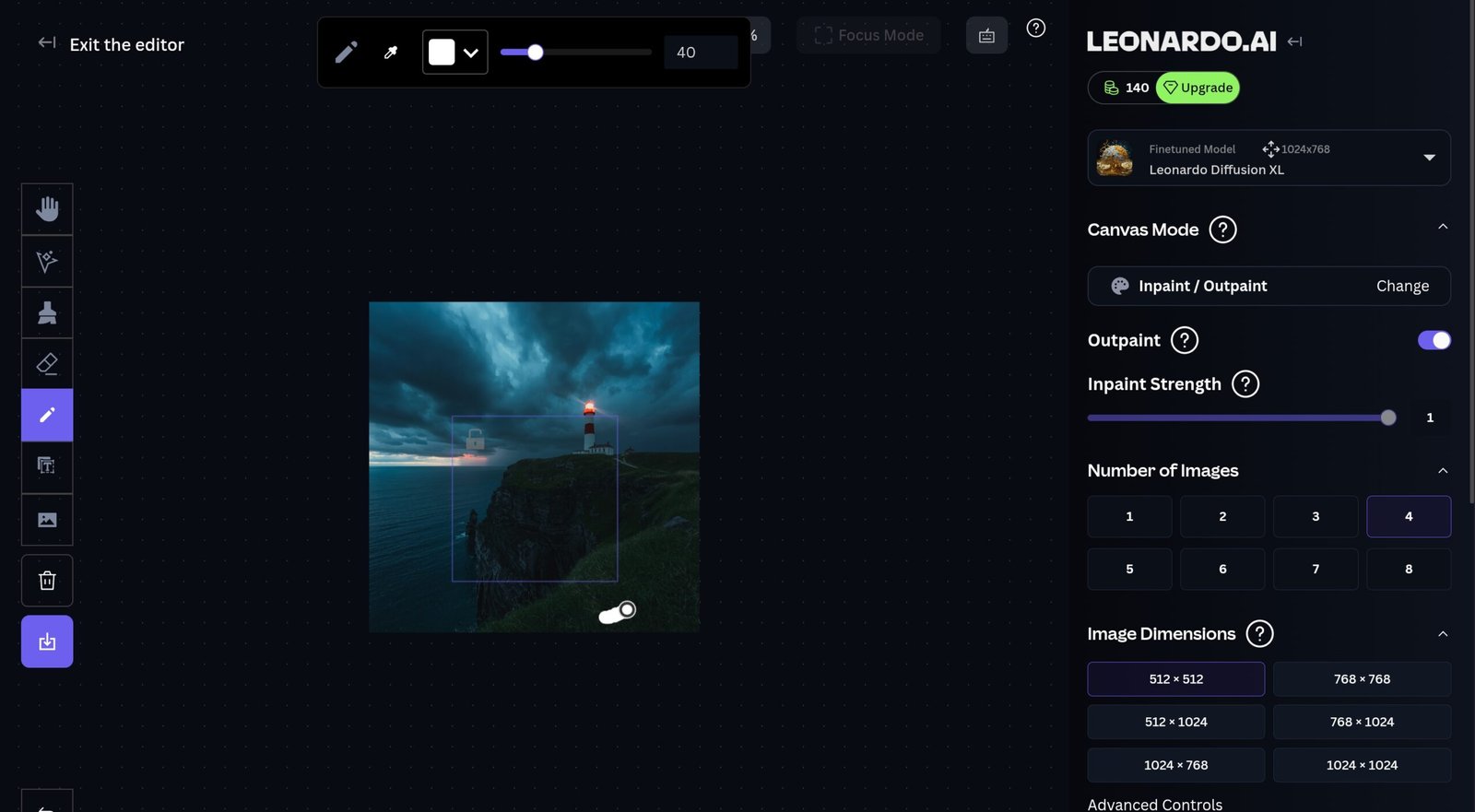
How to Use the Canvas Editor (Inpaint, Outpaint, Sketch-to-Image)
Canvas is where Leonardo separates itself from simpler generators, and it’s the part most beginners skip past. It has three main tools:
🎨 Inpaint — Fix a Specific Area
Brush over any region of a generated image and regenerate just that part. Use it to fix a distorted face, replace an object, remove background clutter, or clean up extra fingers without touching the rest.
🔲 Outpaint — Extend the Image
Expand beyond the original borders and fill the new space with AI-generated content that matches the scene. Useful for turning a portrait into a wider banner crop.
✏️ Sketch-to-Image
Draw a rough layout — basic shapes or a stick-figure composition — and Leonardo builds a polished image around your structure. No drawing skill required.
Leonardo AI Video Generation
Leonardo can also animate an existing image or generate a short video clip directly from a text prompt, from inside the same dashboard.
Video models currently available include integrations from Kling, Google Veo, and Seedance, alongside Leonardo’s own Motion model line. Both text-to-video and image-to-video are supported. As with the image models above, check the Models tab for the exact versions live right now — these update frequently.
To animate an existing image: hover over it in your Library and click Convert to Video, then choose a video model and settings.
Common Mistakes Beginners Make
Using Phoenix or Lucid Origin for text-heavy images
General-purpose models can render short text but aren’t built for it. If a sign, label, or logo needs to be spelled correctly, switch to Ideogram 3.0 first — it saves several failed regenerations.
Iterating in Ultra mode
Ultra costs several times more tokens than Fast for the same prompt. Refine the composition and wording in Fast mode first, and only switch to Ultra once the prompt is already working.
Assuming free-plan images stay private
There’s no private mode on the free plan — everything generated is visible on the public Community Feed by default. Don’t use the free plan for confidential concepts, unreleased branding, or client drafts.
Regenerating the whole image to fix one flaw
A distorted hand or odd background doesn’t require starting over. Use Inpaint to fix just that region — it’s faster and uses fewer tokens than a fresh generation.
Skipping the negative prompt field
Leaving it blank means dealing with more artefacts — extra fingers, warped faces, watermark-like text. A short standard negative prompt (see the list above) removes most of these before they happen.
Is Leonardo AI Safe?
A fair question, especially for work use or client-facing content. Leonardo has several moderation layers:
- Prompt-level filtering — Certain keyword combinations are blocked before generation starts.
- Output-level filtering — Generated images are reviewed for content that bypassed the prompt filter.
- NSFW controls — Explicit content is restricted by default; preferences are configurable in account settings, subject to platform rules and account type.
- Community standards — Reported images can be reviewed and removed from the Community Feed.
Leonardo AI Pricing: Free vs Paid Plans
👉 Swipe to see all columns
| Plan | Billed Annually | Billed Monthly | Key Features |
|---|---|---|---|
| Free | $0 | $0 | 150 tokens/day · Public images only · No private mode · No API access · No character consistency or LoRA training · Non-exclusive commercial licence |
| Essential | $9.60/mo | $12/mo | ~8,500 tokens/month · Private generation · Consistent Character Engine · Custom LoRA/Elements training (1 slot/month) · Token Rollover Bank (up to 25,500 tokens) |
| Premium | $24/mo | $30/mo | ~25,000 fast tokens/month · Priority queue · Private generation · Full commercial usage rights & full image ownership · API access · Custom training (5 slots/month) · Unlimited Relaxed Generation on first-party models · Token Rollover Bank (up to 75,000 tokens) |
| Ultimate | $48/mo | $60/mo | ~60,000 fast tokens/month · All Premium features · Unlimited Relaxed Video Generation on Motion models · Custom training (50 slots) · Token Rollover Bank (up to 180,000 tokens) · Best for studios and high-volume use |
If you’re generating purely for personal use and can accept the 150-token limit and public images, the free plan is workable. If you need private generation, Essential ($12/month) is the minimum. For full image ownership and commercial usage rights, you need Premium ($30/month) or above. Unused monthly tokens carry over into a Token Rollover Bank on paid plans as long as you stay subscribed.
Leonardo AI vs Midjourney vs ChatGPT Images (2026)
👉 Swipe to see all columns
| Feature | Leonardo AI | Midjourney | ChatGPT Images |
|---|---|---|---|
| Free tier | 150 tokens/day (permanent free plan) | No free plan — paid only from $10/mo | Limited generations included with free ChatGPT; more with Plus |
| Interface | Web dashboard + iOS and Android apps | Discord-based, plus a web app for gallery/editing | ChatGPT chat interface |
| Model variety | 15+ models (own + third-party hub: Flux, Ideogram, Veo, Kling, GPT-Image-1.5, LTX-2, Seedream, etc.) | Midjourney model family only | Single model (GPT Image) |
| Post-generation editing | Canvas: Inpaint, Outpaint, Sketch-to-Image | Basic variation and remix tools | Conversational edits via chat |
| Image quality ceiling | Excellent — strong for both digital art and photorealism | Excellent — strongest default artistic aesthetic | Good — best for clear, literal outputs |
| Private generation | From $12/mo (Essential) | From $60/mo (Pro plan) | Included with ChatGPT Plus ($20/mo) |
| Video generation | Yes — Kling, Veo, Seedance, and Leonardo’s own Motion models | No | No (as of late 2026) |
| Custom model training | Yes — Elements/LoRA training from Essential plan | No | No |
| Best suited for | Control, volume, editing, beginners, developers | Artistic quality, stylised imagery | Ease of use, quick casual outputs |
In short: Leonardo gives the best mix of free access, model variety, and editing tools for learning image generation properly, and it’s the only one of the three offering video models from the same dashboard. Midjourney is worth paying for if artistic quality is the priority and you already know what you’re doing. ChatGPT’s built-in tool is the path of least friction if you already use it daily and want casual, low-effort output. For the full head-to-head, see our Midjourney vs. Leonardo AI comparison.
Can I Use Leonardo AI Images Commercially?
This is worth getting exactly right rather than guessing. Here’s what applies, plan by plan:
⚠️ Free Plan — Limited Commercial Use
- Non-exclusive, royalty-free licence — casual commercial use may technically be permitted, but Leonardo retains rights to use, reproduce, and distribute your images
- Images are public by default on the Community Feed
- No exclusive ownership of images generated on the free plan
- Not suitable for confidential client work, NDA projects, or proprietary brand assets
✅ Essential ($12/mo) — Private Generation Unlocked
- Images are no longer publicly visible
- Suitable when confidentiality matters (internal projects, NDA work)
- Full image ownership and commercial rights still require Premium or above
✅ Premium ($30/mo) and Above — Full Commercial Rights
- Full image ownership — Leonardo doesn’t retain distribution rights
- Private generation included
- Suitable for client work, paid brand projects, and commercial content at scale
Practical guidance by use case:
- Personal blog / social media (free plan): Generally fine, but check leonardo.ai/terms — commercial rights on the free plan aren’t unambiguous
- YouTube thumbnails for your own channel (free plan): Generally fine for personal channels
- Confidential work / NDA projects: Essential plan minimum, for private generation
- Paid client work / freelance design: Premium plan minimum, for full ownership and commercial rights
- Print-on-demand / selling products with the image: Premium plan — the free plan’s non-exclusive licence makes this too risky
Frequently Asked Questions
Are my free Leonardo AI images public or private?
Public by default. Anyone browsing the Community Feed can see them. Private generation is available from the Essential plan ($12/month) and above — if you’re generating anything confidential or under NDA, you need at least that plan.
What is the difference between Fast mode and Ultra mode?
Fast mode generates quickly at a lower token cost, meant for experimenting. Ultra produces higher-fidelity images at a significantly higher token cost. The exact cost for each is shown on the Generate button before you click. Refine your prompt in Fast mode, then switch to Ultra for the final version.
What is Lucid Origin?
Leonardo’s current flagship model as of 2026 — versatile across photorealism, illustration, digital art, and cinematic scenes, at Full HD resolution with strong prompt adherence. For strict adherence on complex multi-element scenes, Phoenix 2.0 is the better pick.
How many images can I generate for free per day?
150 tokens per day. At the cheapest settings with efficient models like FLUX Schnell, that’s roughly 25–37 images. With flagship models like Lucid Origin or Phoenix at standard settings, expect closer to 5–15 images per day. The Generate button always shows the exact cost for your current settings.
How long does generation take on the free plan?
Fast mode typically takes a few seconds to under a minute. During peak hours, free-tier users have lower queue priority and waits can get longer. Paid plans include priority queue access, which removes most of that delay.
Does Leonardo AI add watermarks to downloaded images?
No. Downloads are clean PNG files on both the free and paid plans.
Can I use Leonardo AI images commercially?
Depends on your plan. Free-plan users get a non-exclusive, royalty-free licence, but Leonardo retains rights to use and distribute the images, and everything is public by default. Essential ($12/month) unlocks private generation. Premium ($30/month) and above gives full image ownership and clear commercial rights. Check leonardo.ai/terms before any paid client use.
Does Leonardo AI have a mobile app?
Yes — official apps on iOS (App Store) and Android (Google Play), synced with your account so you can start on desktop and continue on mobile.
Can I train my own AI model on Leonardo AI?
Yes, through “Elements” training on paid plans — from 1 slot/month on Essential up to 50 on Ultimate. You upload images in a specific style or of a specific subject, and Leonardo fine-tunes a model to match. Four training categories: Style, Character, Object, Concept. Elements trained on FLUX Dev only work with FLUX Dev presets, not Phoenix or other models.
What is Relaxed Generation?
A lower-priority queue on Premium and Ultimate plans that lets you generate on Leonardo’s first-party models (Lucid Origin, Lucid Realism, Phoenix 1.0/2.0, FLUX Dev, FLUX Schnell, and Motion models on Ultimate) without using Fast Tokens. It’s not instant, but effectively unlimited if you can wait. Third-party models never qualify for it.
🚀 Ready to Try Leonardo AI?
Sign up free at leonardo.ai — no card needed. More hands-on AI tool guides at CrixPix.
Read – Best Free AI Image Generator