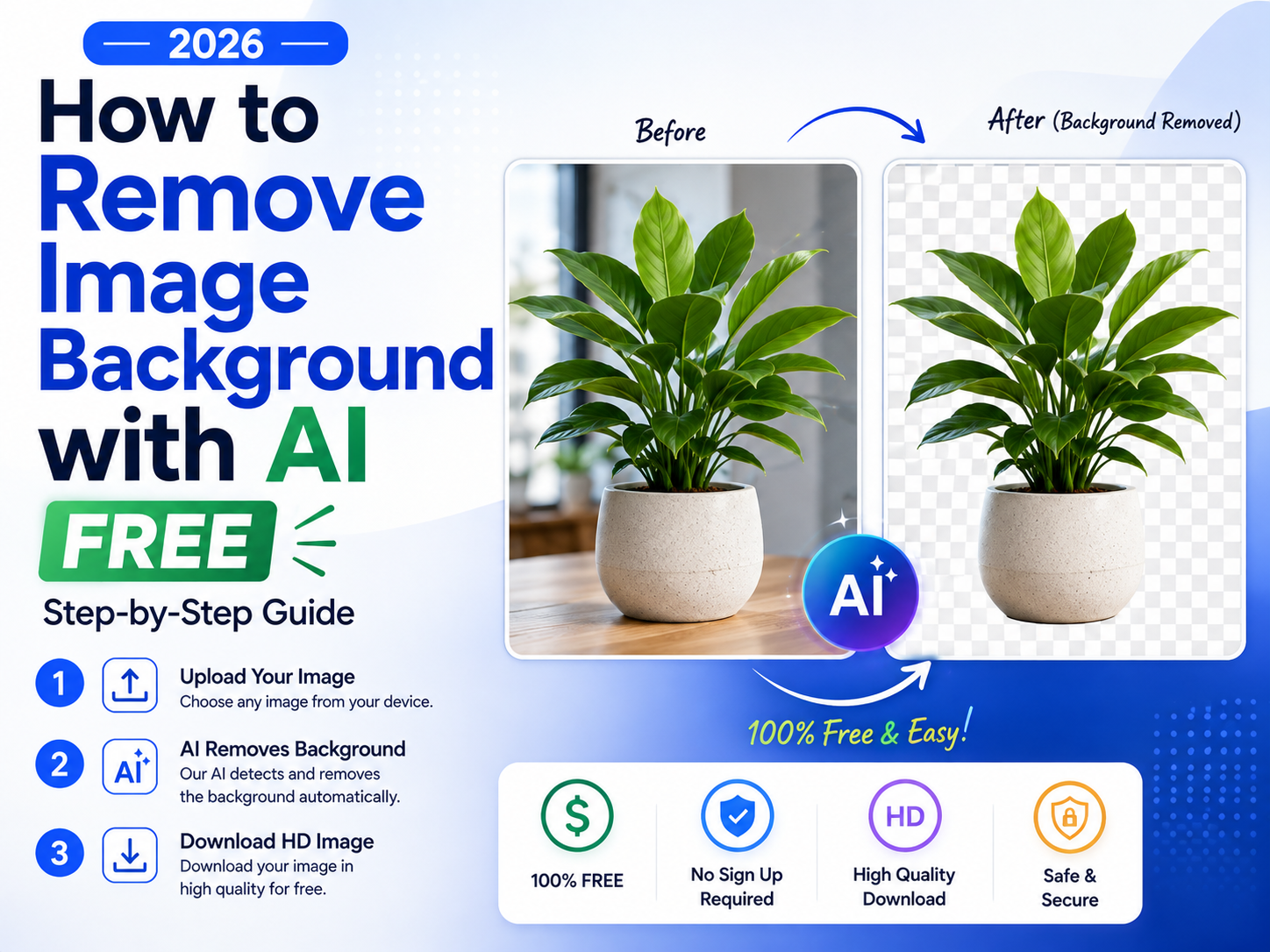
How to Remove Image Background with AI Free (2026 Step-by-Step Guide)
Want to know exactly how to remove image background with AI free in 2026? You are in the right place. Removing image backgrounds used to require hours in Photoshop and professional design skills. Today, AI does it in a few seconds — for free — with results that are often cleaner than manual editing. This guide walks through 5 different free methods step-by-step: Remove.bg, Adobe Express, Canva, Pixelcut, and Pixlr. We also cover the best use cases, common mistakes to avoid, and pro tips for clean edges.
📋 Table of Contents
- What Does AI Background Removal Actually Do?
- Who Needs to Remove Backgrounds?
- Method 1 — Remove.bg (Best Accuracy)
- Method 2 — Adobe Express (Best Free Unlimited)
- Method 3 — Canva (Best All-in-One Design)
- Method 4 — Pixelcut (Best Unlimited Free)
- Method 5 — Pixlr (Best Free High-Resolution)
- Which Method Should YOU Use?
- Complete Free Workflow: Remove + Design + Publish
- 5 Mistakes That Ruin Your Background Removal
- 8 Pro Tips for Perfectly Clean Cutouts
- Frequently Asked Questions
What Does AI Background Removal Actually Do?
Before we dive into how to remove image background with AI free, it helps to understand what is actually happening behind the scenes — because understanding this helps you get better results.
AI background removal uses deep learning models called semantic segmentation networks — neural networks trained on large sets of labelled images where pixels are classified as either “subject” or “background.” When you upload your image, the AI processes it to identify the subject by its shape, texture, colour contrast, and depth cues, then separates it from the background.
Modern AI background removers in 2026 can handle what used to be the hardest challenges in manual editing: individual hair strands, fine fur, transparent glass, semi-transparent fabric, and complex product shapes with shadows and reflections — usually in a few seconds rather than the 20–45 minutes careful Photoshop masking used to take.
Who Needs to Remove Image Backgrounds? (Real Use Cases)
Method 1 — How to Remove Image Background Free with Remove.bg
Remove.bg — Best Overall Accuracy
Unlimited Low-Res Previews No Watermark Highest Accuracy Few SecondsRemove.bg is one of the longest-running and most accurate AI background removers available, particularly strong on portraits and fine hair — see our separate 10-tool comparison for the full scored breakdown against other tools. It has been in operation since 2018 and its model is trained on a large dataset of real-world images. Here is the full step-by-step process:
Step-by-Step: Remove.bg
✅ Best For
- Portrait photos with complex hair
- Fine fur and pet photography
- When accuracy matters more than resolution or volume
- Integrating with Photoshop via plugin
⚠️ Limitations
- Free downloads are capped at low resolution (~625×400px, 0.25MP)
- Full resolution always requires paid credits or a subscription
Method 2 — How to Remove Image Background Free with Adobe Express
Adobe Express — Best Free Unlimited with Full Resolution
Unlimited Free No Watermark Full ResolutionAdobe Express gives you unlimited background removals at full resolution with no watermarks — free, once you sign in with a free Adobe account. It runs on Adobe’s Firefly-powered AI, the same generative AI family behind Photoshop’s newer AI tools, and holds up well on complex subjects like glass and jewelry. (For the deeper dive on Adobe’s AI tools, see our guide to Adobe Firefly.) After removing the background, you can immediately drop your subject onto a new template and design a finished graphic — all without leaving Adobe Express.
Step-by-Step: Adobe Express
✅ Best For
- Unlimited free removals needed
- Full-resolution output at no cost
- Creators who want to design immediately after removal
- Glass, jewelry, and complex transparent objects
⚠️ Limitations
- Requires a free Adobe account to download
- Slightly less precise on very fine flyaway hair vs Remove.bg
- Best design templates behind Premium plan ($9.99/month)
Method 3 — How to Remove Image Background Free with Canva
Canva Background Remover — Best for Designers in Canva
Canva Pro Feature No Watermark Best WorkflowCanva’s Background Remover is the most practical tool for creators already working inside Canva. One click removes the background without leaving your design — meaning you can immediately position your subject on a new backdrop, add text, and export a finished thumbnail or social post in minutes. It is a Canva Pro feature ($15/month), but if you already use Canva, it is the smoothest workflow available. Not yet using Canva AI? Read our full guide on how to use Canva AI image generator free.
Step-by-Step: Canva Background Remover
Method 4 — How to Remove Image Background Free with Pixelcut
Pixelcut — Best Truly Unlimited Free Method
Unlimited Free No Watermark HD QualityPixelcut is the best method when you need to remove image backgrounds with AI free and unlimited — no daily caps, no watermarks, HD quality outputs. It also includes a built-in background replacement tool, making it useful for product photography and social media content at scale.
Step-by-Step: Pixelcut
✅ Best For
- High volume removals — no daily limit
- Product photography for online stores
- Mobile creators — solid iOS and Android app
- When you need HD output at zero cost
⚠️ Limitations
- Slightly lower accuracy than Remove.bg on extreme hair detail per our comparison testing
- Batch processing and commercial licensing require the paid plan
Method 5 — How to Remove Image Background Free with Pixlr
Pixlr — Best Free High-Resolution Option
Unlimited Free No Watermark High ResolutionPixlr offers free background removal with one of the higher free output resolutions available in 2026 — confirm the current export cap on Pixlr’s own site before relying on it for print work, since this figure varies across sources and changes with plan updates. It combines background removal with a full browser-based photo editor, giving you cropping, filters, text tools, and layer-based editing after your cutout.
Step-by-Step: Pixlr
Which Method Should YOU Use to Remove Image Background with AI Free?
Here is a decision guide — pick your method based on your specific need. Swipe the table sideways on mobile to see every column.
| Your Situation | Best Method | Why |
|---|---|---|
| Need the most accurate result possible | Remove.bg | Strong reputation for accuracy on hair, fur, fine details (free download is low-res) |
| Need unlimited free removals daily | Pixelcut or Adobe Express | No daily limits, no watermarks, full/HD quality free |
| Want to design immediately after removal | Adobe Express or Canva | Removal and design in one platform — no app switching |
| Already using Canva for thumbnails or posts | Canva BG Remover | One-click removal inside your existing Canva workflow |
| Need high-resolution / print-quality output for free | Pixlr | Higher free export resolution than most free tools — verify the current cap before relying on it |
| Removing backgrounds on your phone | Pixelcut mobile app | Strong mobile background removal app — free |
| Need genuine on-device privacy for sensitive images | Backgroundless | Processes locally in your browser — image never uploaded to a server |
For a full ranked comparison across ten tools tested against the same reference images — including Photoroom, Clipdrop, Backgroundless, Erase.bg, and Fotor — see our best free AI background removers 2026 guide.
Complete Free Workflow: Remove Background + Design + Publish
A useful free workflow combines AI image generation, background removal, and design into one process. Here is the workflow we recommend:
Step 1 — Generate or Source Your Base Image
Use Leonardo AI to generate a custom AI background scene, or use your own photograph as the subject you want to cut out.
Step 2 — Remove the Background
Upload your photo of yourself, your product, or your subject to Pixelcut (unlimited free) or Remove.bg (best accuracy, low-res free preview). Download the clean transparent PNG.
Step 3 — Import Into Canva
Open Canva, create a new design at your target dimensions (1280×720 for YouTube thumbnails, 1080×1080 for Instagram). Upload your transparent PNG cutout.
Step 4 — Place and Design
Drop your cutout onto the AI-generated background. Resize, position, and add your text overlays, logo, and brand colours using Canva’s free design tools.
Step 5 — Export and Publish
Download as PNG at full resolution. Upload directly to YouTube as your thumbnail, or publish to Instagram, LinkedIn, your blog, or anywhere else. Total cost: $0.
5 Mistakes That Ruin Your AI Background Removal
Mistake 1 — Saving as JPG instead of PNG
This is the most common mistake. JPG does not support transparency — it replaces your transparent background with solid white or black automatically. Always save background-removed images as PNG. Never JPG. Check your download settings every single time.
Mistake 2 — Using low-contrast source images
AI background removal accuracy drops when your subject blends into the background — a person in a beige shirt against a cream wall, or dark hair against a dark background. For best results, use source images where the subject clearly contrasts the background.
Mistake 3 — Not checking the edges after removal
Every AI background remover occasionally misses small areas or over-crops fine details. Always zoom in to check your edges before downloading — especially around hair, fingers, and the outer edges of your subject. Use the manual brush tool (available in all 5 methods above) to fix any imperfections.
Mistake 4 — Using a low-resolution source image
AI background removers work better on high-resolution inputs. A blurry, pixelated, or heavily compressed source image makes it harder for the AI to detect precise edges. Use the highest-quality version of your source image available — ideally at least 1000×1000 pixels.
Mistake 5 — Not previewing on multiple backgrounds
A cutout that looks perfect on a white background may show rough edges or colour fringing when placed on a dark or coloured background. Preview your cutout on both a light and a dark background before finalising. Adobe Express and Canva make this easy — just temporarily change the canvas colour to check.
8 Pro Tips for Perfectly Clean AI Background Removal in 2026
- Shoot against a contrasting background. The single biggest factor in removal quality is how different your subject looks from its background. A person against a plain white wall, or a product on a clean surface, removes dramatically cleaner than a complex outdoor scene.
- Use even, soft lighting. Harsh shadows falling behind your subject confuse AI models about where the subject ends. Soft window light or a diffused light source produces the most predictable, cleanest edges.
- Match your tool to your image type. Remove.bg tends to lead on portrait and hair accuracy. Pixelcut and Photoroom are geared toward product shots. Pixlr is a solid pick when resolution matters more than absolute accuracy.
- Use the manual brush for a quick pass of refinement. Every tool has one. Zoom in after removal and spend a few seconds fixing any stray pixels or missed areas with the erase/restore brush — it turns a good cutout into a clean one.
- Preview at actual display size. Preview your finished cutout at the size it will appear when published — around 300px wide for YouTube thumbnails. Edges that look fine at 100% zoom can look rough at small display sizes.
- Generate matching backgrounds with AI. After removing your background, use an AI image generator to create a custom background that fits your subject and brand, instead of a generic stock image.
- Use batch processing for multiple images. If you regularly process more than a handful of images, use a tool’s batch mode rather than processing one at a time.
- Convert PNG to JPG only as a final step. Keep everything as PNG throughout your editing workflow. Only convert to JPG as the very last step if a platform specifically requires it — and only after your design is completely finished.
Frequently Asked Questions
How do I remove image background with AI for free?
The fastest way is to go to remove.bg, click Upload Image, select your file, wait a few seconds, and download the transparent PNG preview — no account required, no watermark, though the free download is low-resolution (about 625×400px). For unlimited free removals at full/HD resolution, use Pixelcut or Adobe Express instead. All three tools are browser-based with no software to download.
Which AI tool removes backgrounds from images for free without a watermark?
Remove.bg, Pixelcut, Adobe Express, Backgroundless, Pixlr, Erase.bg, and Clipdrop all remove image backgrounds for free without adding any watermarks. For unlimited watermark-free removals, Pixelcut and Adobe Express are strong free options in 2026.
Is remove.bg completely free to use?
Remove.bg’s free tier gives unlimited preview-quality downloads at low resolution (about 625×400px, 0.25 megapixels), with no watermark. Full-resolution downloads require purchasing credits (packs start around $9 for 40 credits) or a subscription. For unlimited free full-resolution use, Pixelcut or Adobe Express are better alternatives.
What is the best format to save background-removed images?
Always save background-removed images as PNG files. PNG is the only common image format that supports true transparency — your transparent background is preserved exactly as the AI created it. If you save as JPG, the transparency is automatically replaced with solid white or black, destroying the transparent background.
How do I remove the background from an image without Photoshop?
You do not need Photoshop to remove image backgrounds in 2026. Free browser-based AI tools like Remove.bg, Pixelcut, Adobe Express, Canva, and Pixlr all remove backgrounds in a few seconds with accuracy that often matches or exceeds manual Photoshop masking. No software download is required — all tools work directly in your browser on any device including smartphones.
Can AI remove backgrounds from photos with hair accurately?
Yes. Modern AI background removers in 2026 handle hair and fur with impressive accuracy using segmentation models that detect individual strands alongside overall subject shape. Remove.bg has a strong reputation specifically for hair accuracy. For best results on complex hair, shoot against a high-contrast background and use even lighting.
How do I remove background from an image on my phone for free?
The Pixelcut mobile app (iOS and Android) is a strong free option — no watermarks, unlimited removals. Adobe Express also works well on mobile browsers. Canva’s mobile app includes background removal for Pro subscribers.
🚀 Remove Your First Background Free Right Now
Go to pixelcut.ai for unlimited free removals — or remove.bg for maximum accuracy (low-res free preview).
Then bring your cutout into Canva to design and publish in minutes.
Bookmark CrixPix.com for honest, hands-on guides to the AI tools that matter in 2026.