
How to Generate an Image with Adobe Firefly (With the Free Plan, and What You Can’t Do)
You can generate four image variations from one prompt on Adobe Firefly’s free plan in under a minute. You’ll need a free Adobe account — no credit card — but the downloads will carry a watermark, and you won’t have commercial usage rights. That’s the core tradeoff. Everything below covers how to actually use the tool, where the free plan’s real limits are, and how to get results worth using.
On this page
- What Adobe Firefly actually is (and what it isn’t)
- The free plan: exactly what you get
- Step-by-step: your first image
- Settings that matter more than your prompt
- Generative Fill: the feature worth using Firefly for
- Text Effects in 60 seconds
- Getting real vectors out of Illustrator
- Prompt structure that works
- Pricing: what changed in 2025–2026
- Six tips you won’t find in the official tutorial
- FAQ
What Adobe Firefly Actually Is (And What It Isn’t)
Adobe Firefly is a set of generative AI models that produce images, vectors, text effects, short videos, and audio. It runs as a standalone web app at firefly.adobe.com and is embedded inside Photoshop, Illustrator, Premiere Pro, and Adobe Express.
The reason Firefly matters — the reason you’d pick it over Midjourney or Stable Diffusion — is training data. Adobe trained it on Adobe Stock, licensed content, and public domain material, not scraped from the open web. On paid plans, that means you can use outputs commercially without the legal ambiguity that comes with most other AI image tools. On the free plan, you get none of that protection — just a watermarked preview.
What Firefly is not: a full design tool. It doesn’t do layouts, text overlays, or branding. You’ll still need Canva, Figma, or Photoshop for finished work.
The Free Plan: Exactly What You Get
Adobe’s marketing calls it “free daily generations.” The reality, based on Adobe’s own documentation:
- ~25 generative credits that refresh on a rolling basis after you use them up — not a fresh batch every calendar day. One Text to Image generation costs 1 credit and returns 4 variations. So roughly 100 image variations before you’re waiting for a refresh.
- Watermarked downloads. Every image you download on the free plan has a visible Adobe Firefly watermark.
- No commercial usage rights. You cannot legally use free-plan outputs in client work, monetized content, or paid advertising.
- No IP indemnification. The legal protection Adobe offers paying customers doesn’t apply to free output.
The free plan is for testing the tool, learning prompt structure, and making personal drafts. It is not a production tool. If you’re planning to publish what you make, budget for the Standard plan at minimum.
Step-by-Step: Your First Image
Generate an image from text
Here’s a prompt worth testing right now:
Settings That Matter More Than Your Prompt
Firefly’s settings panel is more reliable than prompt wording for certain things. Instead of typing “golden hour lighting” into your prompt, set it in the panel. Firefly responds more consistently to structured settings than to the same instruction buried in text.
Generative Fill: The Feature Worth Using Firefly For
Generative Fill edits existing photos by letting you paint over an area and describe what should appear there. It’s available on the Firefly web app and inside Photoshop. This is Firefly’s most genuinely useful feature — nothing else in the AI image space does this as well for photo editing.
Edit a photo with Generative Fill
What people actually use Generative Fill for:
- Removing a person from a group photo — paint over them, leave the prompt blank, Firefly fills the gap with the background
- Replacing a cluttered background with a clean office or studio scene
- Adding an object that wasn’t in the original shot — describe it, Firefly places it with correct perspective and shadows
- Extending an image beyond its original borders (Generative Expand, in Photoshop)
- Changing the time of day in a landscape — describe “evening,” Firefly adjusts the light across the whole scene
- Swapping clothing colours on a person in a product or portrait photo
Text Effects in 60 Seconds
Apply an AI style to text
carved into ancient stone with moss growing in the letters
neon pink and blue glow on black background, cyberpunk
golden metallic 3D with dramatic studio lighting
Getting Real Vectors Out of Illustrator
Text to Vector is Firefly’s most underused feature. It’s only available inside Adobe Illustrator (requires a Creative Cloud subscription). It generates actual SVG files — not raster images — that scale cleanly from a business card to a billboard.
Generate vectors in Illustrator
Prompt Structure That Works
The structure below produces consistently better results than free-form descriptions:
Bad vs good prompts
Words that consistently improve results
- Lighting: Rembrandt lighting, softbox, natural diffused light, golden hour, backlit rim light
- Quality: professional photography, commercial grade, ultra detailed, sharp focus
- Style: photorealistic, cinematic, editorial, concept art, fine art photography
- Camera: shot on 50mm lens, bokeh, shallow depth of field, aerial view
- Colour: warm tones, cool tones, muted palette, vibrant, high contrast
Pricing: What Changed in 2025–2026
Firefly’s pricing has been restructured more than once. Here’s what’s confirmed, straight from Adobe’s own documentation, plus what you should check yourself before paying. Adobe’s pricing pages state that displayed amounts “may differ for a limited time,” and independent trackers have shown different numbers for the same plans at different points in the year.
What’s structural (not just a number)
- Free tier is a limited, watermarked trial. Adobe’s marketing says “free daily generations,” but the documented mechanism is ~25 credits that refresh on a rolling basis — not a fresh batch every day. Output is watermarked. No commercial rights.
- Standard image and vector generation is unlimited on paid plans. Since the 2025 relaunch, credits on paid tiers are reserved for premium video/audio and partner-model access — not basic image generation.
- Creative Cloud plans were renamed in 2025. “Creative Cloud All Apps” became “Creative Cloud Pro” in June 2025 (North America) and August 2025 (elsewhere), with 4,000 monthly generative credits included.
- Adobe runs limited-time “unlimited generations” promotions on paid tiers. At least two such windows have run in early-to-mid 2026. They’re time-limited and eligibility-restricted — don’t budget around one without checking it’s active.
Approximate pricing (confirm before paying)
| Plan | Approx. price | Monthly credits | What you actually get |
|---|---|---|---|
| Free | $0 | ~25 rolling | Watermarked output, no commercial rights |
| Standard | $9.99/mo | 2,000 | No watermark, commercial rights, unlimited standard image/vector generation |
| Pro | $19.99/mo | 4,000 | Adds Photoshop on web/mobile, Adobe Express Premium |
| Pro Plus | ~$49.99/mo | ~10,000 | Volume tier; often discounted first year |
| Premium | ~$199.99/mo | ~50,000 | Studio/agency tier for heavy video/audio work |
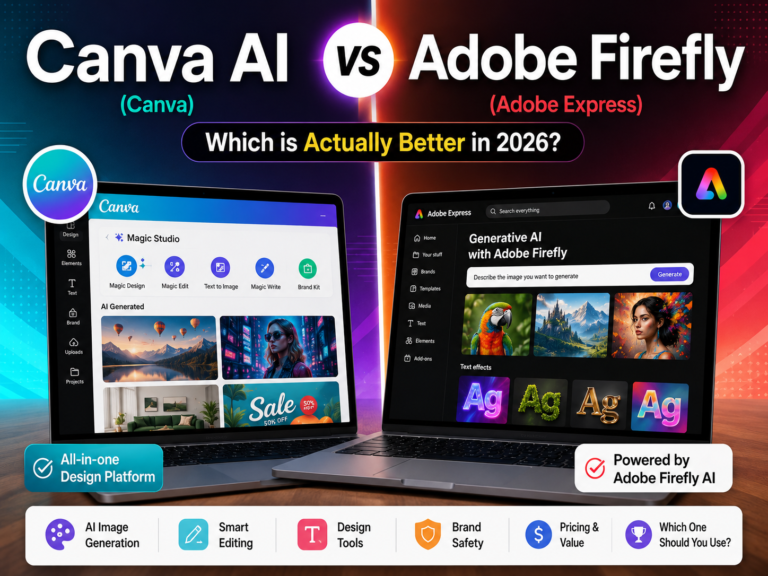
For a fuller comparison against a competitor with a genuinely different free tier, our Canva AI vs Adobe Firefly comparison breaks down what you get at each price point across both platforms.
Six Tips You Won’t Find in the Official Tutorial
- Settings override prompt text. If you write “golden hour lighting” in your prompt and set Lighting → Golden Hour in the panel, the panel wins. Use the panel for lighting, colour, and aspect ratio. Use the prompt for subject, scene, and style.
- Leave the Generative Fill prompt blank to remove objects. When removing something — an unwanted person, object, or background element — don’t type anything. Just paint over the area, leave the field empty, and click Generate. Firefly infers the fill from the surrounding image.
- Browse the Explore gallery for prompt ideas. At firefly.adobe.com/explore, click any image to see the exact prompt behind it. This is faster than trial-and-error for learning what produces professional results.
- Generate at least two rounds before abandoning a prompt. Results vary even with identical text. Review all 4 variations from the first round, then decide whether to refine the wording or try a different approach entirely.
- Compare partner models on the same prompt. Run your prompt through Firefly’s own model, then try an available partner model with identical wording. Different models have different aesthetic tendencies. Adobe rotates which partner models are available, so check what’s listed in your account.
- Know what “free” gets you elsewhere before committing. If Firefly’s watermark or credit limits get in your way, Leonardo AI’s free tier is worth comparing directly. See our guide to the best AI art generators with no signup for options that may suit casual use better.
FAQ
Is Adobe Firefly free?
Yes, with real limits. The free tier gives roughly 25 generative credits on a rolling refresh, watermarked downloads, and no commercial usage rights. No credit card required. Paid plans start at $9.99/month and remove the watermark.
Can I use Firefly images commercially?
On paid plans, yes. Adobe trained Firefly on licensed content and offers IP indemnification to eligible paying customers for qualifying outputs. Free-tier output is watermarked and specifically excluded from commercial use.
Do I need Photoshop to use Firefly?
No. The web app at firefly.adobe.com works in any browser. Photoshop is only needed for the most advanced Generative Fill workflows, and Text to Vector specifically requires Adobe Illustrator.
What’s the difference between Firefly and Canva AI?
Firefly is a generative engine focused on image quality and IP safety. Canva AI is a full design platform with AI generation built into a broader workflow. Firefly leads on image quality and commercial protection on paid plans; Canva leads on design workflow speed. Many creators use both. See our full comparison for details.