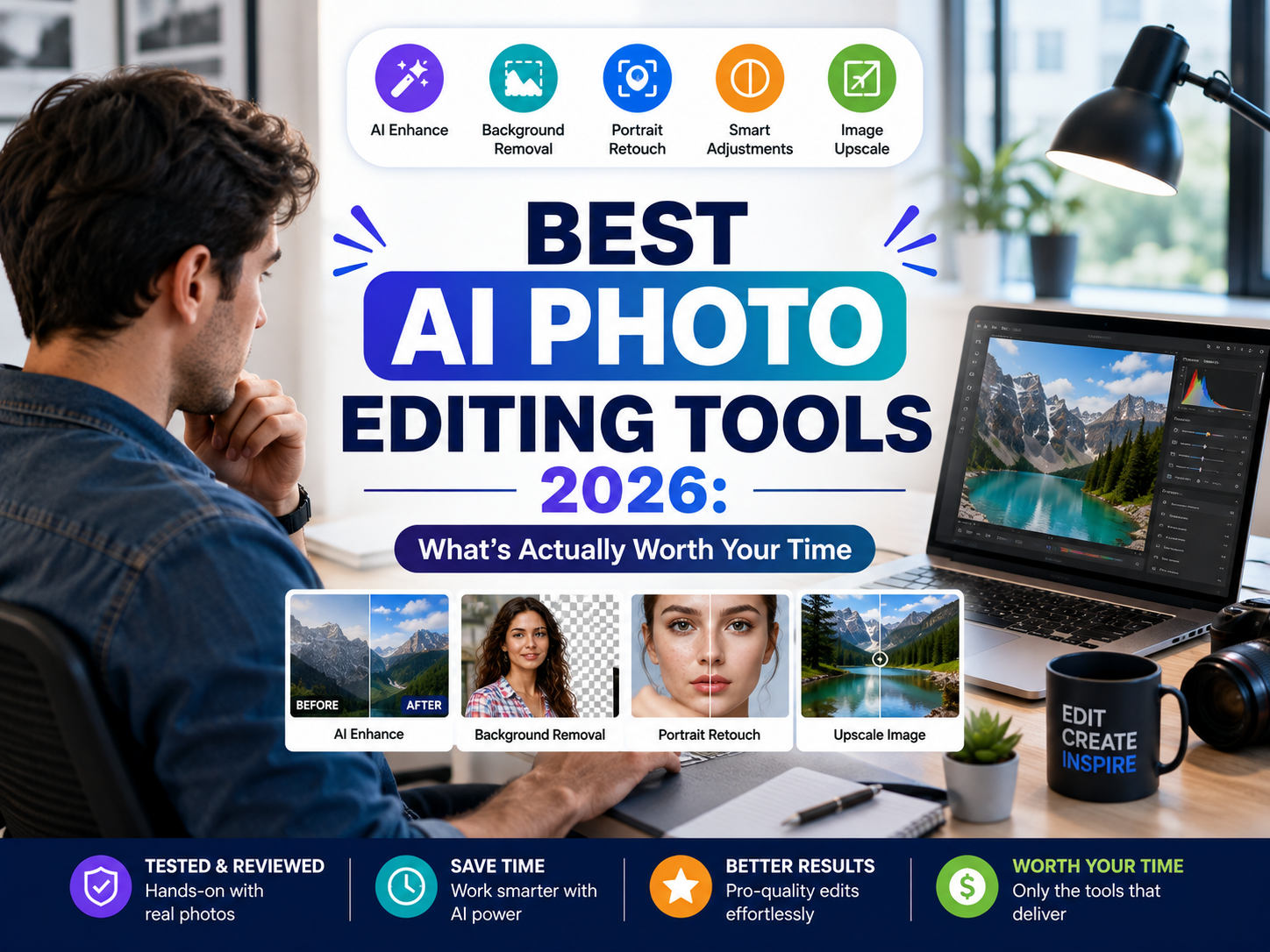
Best AI Photo Editing Tools 2026: What’s Actually Worth Your Time
Last reviewed: August 2026 Updated regularly
Every photo app now claims its AI will “transform” your pictures. Most of them just add a background eraser and call it innovation.
After digging through the real 2026 lineup — Photoshop’s Firefly-and-Topaz combo, Luminar Neo, Canva, and half a dozen others — the honest picture is simpler than the marketing pages suggest. A handful of tools genuinely save you hours. The rest recycle the same three AI tricks behind a new coat of paint.
This guide covers the best AI photo editing tools 2026 has to offer, sorted by what you’re actually trying to do: quick social edits, serious retouching, product photos, or rescuing a blurry photo from 2009. Whether you want the single best AI photo editor for everyday use or a dedicated photo retouch program for client work, there’s a specific pick below rather than a vague “it depends.” No filler rankings, just the tools worth downloading.
If you only read one section, read this one.
- Best overallAdobe Photoshop (Firefly + Topaz AI)
- Best for beginnersCanva Magic Studio
- Best for photographersLuminar Neo
- Best free optionFotor or Pixlr
How We Compared These AI Photo Editors
This roundup is built the way CrixPix builds its “best of” guides: pulled from each company’s official pricing pages and documentation, then cross-checked against independent reporting — not a hands-on test of all ten tools. Full single-tool reviews on this site do get the hands-on treatment, and you can read exactly how on our testing methodology page.
Four things decided where each tool landed on this list: how realistic the AI output looks at full zoom, how usable the free tier actually is, whether commercial use is allowed without an upgrade, and how steep the learning curve is for someone who has never touched a layer mask. You can browse every image tool we’ve covered so far in the AI Image Tools library.
| Tool | Best For | Starting Price | Free Tier |
|---|---|---|---|
| Adobe Photoshop | Overall / professionals | ~$19.99/mo (Photography plan) | 7-day trial only |
| Canva Magic Studio | Beginners & social content | ~$12–15/mo (Pro) | Yes |
| Luminar Neo | Creative photo editing | ~$119 one-time | Trial only |
| Topaz Photo AI | Upscaling & restoration | Subscription (varies) | Trial only |
| PhotoRoom | Product / e-commerce photos | ~$7–14/mo | Yes, watermarked |
| Picsart | All-in-one mobile editing | ~$10–13/mo (Pro) | Yes |
| Fotor | Free browser editing | ~$4–9/mo (paid tiers) | Yes, generous |
| Remini | Portrait & face restoration | Subscription for unlimited | Yes, limited |
| Pixlr | Free Photoshop alternative | Paid tiers optional | Yes |
| Aftershoot / Imagen AI | Pro photographers, batch edits | Flat-rate / pay-as-you-go | Trial only |
Note on pricing: AI subscription pricing shifts often — some tools here changed plans twice in 2026 alone. Treat the numbers above as a starting point and confirm current pricing on each vendor’s official page before buying.
The 10 Best AI Photo Editing Tools 2026
Here’s the full lineup, roughly ordered by how much value each one delivers for the price.
1. Adobe Photoshop (Firefly + Topaz AI)
Best OverallPhotoshop earns the top spot because it’s the only tool here that pairs real layer-based control with genuinely competitive generative AI. Photoshop 2026 (version 27.0) shipped a Harmonize tool that automatically matches lighting, color, and shadows across composited layers, plus a Generative Upscale feature that now runs Topaz Labs’ Gigapixel and Bloom models alongside Adobe’s own Firefly upscaler. Adobe went further in mid-2026, announcing a deal to acquire Topaz Labs outright and fold its enhancement models directly into Creative Cloud.
The trade-off is complexity and cost. AI features run on a metered credit system, and if you only need to erase a stranger from a beach photo, this is overkill. For everything more demanding, it’s still the tool the rest of this list gets measured against.
- Best forPros who need full control
- PriceFrom ~$19.99/mo
- StandoutHarmonize + Topaz upscaling
2. Canva Magic Studio
Best for BeginnersCanva built its reputation on templates, but Magic Studio turned it into a legitimately useful AI photo editing tool for beginners. Magic Edit lets you select an object and type a replacement description; Magic Eraser clears small distractions in a couple of taps. It won’t out-retouch Photoshop on a hair-thin edge, but for social posts and quick fixes, it’s fast enough that people actually finish the edit instead of giving up.
Canva’s free plan already covers basic background removal, and Pro adds unlimited exports. For a closer side-by-side against Adobe’s approach, our Canva AI vs Adobe Firefly comparison breaks down which one fits faster workflows.
- Best forHobbyists, social content
- PriceFree; Pro ~$12–15/mo
- StandoutPrompt-based Magic Edit
3. Luminar Neo
Best for PhotographersSkylum designed Luminar Neo for photographers who want dramatic results without a Photoshop-level learning curve. Its GenSwap, GenErase, and GenExpand tools handle sky replacement, object removal, and canvas extension in a few clicks, and the app supports full RAW editing with AI noise reduction. Unlike most tools on this list, Luminar Neo still sells a one-time license alongside its annual Pro plan — a real option for anyone tired of monthly software bills.
It’s a photography tool first, so don’t expect layer-based compositing or text-to-image generation here.
- Best forAI editing without a subscription
- PriceOne-time from ~$119
- StandoutGenSwap sky replacement
4. Topaz Photo AI
Best for RestorationWhen a photo is too small, too noisy, or too blurry to use, Topaz Photo AI is the specialist to call. Its Autopilot mode reads the image and applies the right mix of denoising, sharpening, and upscaling automatically, while Face Recovery rescues detail from low-resolution or heavily cropped portraits. Topaz shifted from a one-time license to subscription pricing in late 2025, so check current plans rather than assume the old lifetime price still applies.
This isn’t a full editor — it enhances what already exists rather than adding or removing objects.
- Best forOld, blurry, or low-res photos
- PriceSubscription (check site)
- StandoutAutopilot denoise + upscale
5. PhotoRoom
Best for Product PhotosPhotoRoom exists for one job: making a product photo look studio-shot even when it was taken on a kitchen counter. It removes backgrounds cleanly and can generate styled lifestyle scenes around a product automatically through its Virtual Model feature. Sellers on Shopify, Amazon, and Etsy get the most out of it, since batch processing turns a hundred product shots into listing-ready images in one pass.
If background removal is genuinely the only thing you need, our free background remover guide compares five no-cost options first.
- Best forE-commerce sellers
- PriceFree tier; paid from ~$7/mo
- StandoutAuto-generated product scenes
6. Picsart
Best Mobile All-RounderPicsart’s pitch is simple: photo editing, AI image tools, and short-form video, all inside one app. Its AI enhancer and background remover handle everyday phone photos well, and the built-in template library covers everything from Reels covers to marketplace listings. It’s probably already on a teenager’s phone, which says something about how approachable it is.
Picsart’s free tier covers basic edits, and Pro unlocks higher-resolution exports and more AI credits.
- Best forMobile-first editing
- PriceFree; Pro ~$10–13/mo
- StandoutPhoto + video + templates in one app
7. Fotor
Best Free OptionFotor skips the download entirely and still packs a genuinely capable AI powered photo editing toolkit under its design templates. Its object remover handles small distractions well, and the free tier covers background removal and basic enhancement with daily limits instead of a hard paywall. For anyone testing AI editing before committing to a subscription, it’s the lowest-friction place to start.
Paid tiers unlock watermark-free exports and batch editing for a few dollars a month.
- Best forBudget users, quick edits
- PriceFree; paid from ~$4/mo
- StandoutNo install, real AI tools included
8. Remini
Best for PortraitsRemini built its entire following around one trick: turning a blurry, low-resolution face into something sharp and detailed. It’s genuinely good at that specific job, which makes it the default choice for restoring old family photos or fixing a pixelated profile picture. It isn’t a general editor, though — don’t expect background swaps or object removal here, since this tool specializes rather than generalizes.
- Best forOld or blurry portrait photos
- PriceFree (limited); subscription for more
- StandoutFace-focused AI upscaling
9. Pixlr
Best Free Photoshop AlternativePixlr opens PSD files, runs entirely in the browser, and still includes AI background removal, object removal, and a usable generative fill tool — all without asking for a credit card. It won’t replace Photoshop for a professional retoucher, but for layer-based editing without paying, Pixlr covers more ground than almost anything else free.
- Best forFree layer-based editing
- PriceFree; paid tiers optional
- StandoutOpens PSDs, no download needed
10. Aftershoot & Imagen AI
Best for ProsWedding and portrait photographers shooting thousands of frames per event don’t need another one-off editor — they need something that learns their style and applies it at scale. Aftershoot handles AI culling, editing, and retouching offline with flat-rate pricing, while Imagen AI plugs directly into Lightroom Classic and applies consistent, learned edits across a whole shoot, including reliable skin-tone matching for weddings. Neither is built for casual use; both exist to save a working photographer hours every week.
- Best forHigh-volume pro photographers
- PriceFlat-rate or pay-as-you-go
- StandoutBatch edits that learn your style
Which AI Photo Editing Tool Fits Your Situation?
Ten options is a lot to sort through, so here’s the shortcut by use case.
- New to AI editing or a hobbyist: among the best AI photo editing tools for beginners, Canva and Fotor stay usable without a tutorial.
- Real estate listing photos: Luminar Neo’s sky replacement and PhotoRoom’s clean backgrounds handle most listing shots, while Photoshop’s Generative Fill covers tricky staging removals agents often need.
- Object removal specifically: Photoshop’s Generative Fill stays the most reliable for complex removals; Canva’s Magic Eraser and Luminar’s GenErase both handle simpler jobs for free.
- Working photographers: Luminar Neo for creative single-image edits, Aftershoot or Imagen AI for consistency across hundreds of frames.
- Editing on an iPhone: Picsart and Remini both run natively on iOS, and Photoshop’s mobile app now carries a trimmed version of its desktop AI tools too.
How to Choose an AI Photo Editor
Run through this checklist before you commit to a subscription.
- Budget model: subscriptions (Photoshop, Canva, Picsart) versus a one-time license (Luminar Neo). A one-time purchase pays for itself quickly if you don’t need constant new features.
- RAW support: photographers shooting RAW need Photoshop, Lightroom, Luminar Neo, or Topaz — most browser-based tools only accept JPEG or PNG.
- Commercial rights: a free tier being “allowed for commercial use” and actually covering your risk are two different questions — the licensing section below breaks down the difference.
- Content authenticity: Adobe attaches Content Credentials (C2PA metadata) to AI-edited exports automatically, which increasingly matters for journalism, stock photography, and marketplaces that flag undisclosed AI images.
- Offline versus cloud: Aftershoot processes locally; most other tools on this list need an internet connection because the AI model runs on a remote server.
AI Photo Editing Myths vs. Reality
Every product page reads like the tool never makes a mistake. Here’s what actually holds up once you push past the demo screenshot.
| Myth | Reality |
|---|---|
| AI object removal works perfectly every time | Generative fill nails simple removals — power lines, litter, a stranger in the background — but still stumbles on hands, text, reflections, and anything touching a repeating pattern like brick or fabric. Professional retouchers still hand-finish these. |
| “Commercially safe” means zero legal risk | It usually means the vendor indemnifies you against copyright claims, and only on paid plans. Indemnification covers the output infringing someone else’s IP — it doesn’t cover every legal issue, like misrepresenting a property or using someone’s likeness. |
| AI upscaling recovers real detail | Tools like Topaz’s Gigapixel model and Firefly’s upscaler generate plausible detail based on training data. It looks sharper, but it’s inference, not reconstruction — treat it as “good enough for the use case,” not forensic-grade recovery. |
| A free tier is fine for business use | Several free tiers explicitly restrict commercial use, and Shutterstock rejects externally AI-edited images regardless of which plan produced them. Check the license and the destination platform’s policy separately. |
| Newer AI models are strictly better | Model updates sometimes trade one strength for another — a version that improves skin tones can quietly regress on text rendering or hair detail. Anyone with a workflow that depends on a specific look should test an update before trusting it live. |
Where AI Photo Editing Actually Breaks
Most comparisons rate a tool on its best result. Almost none benchmark where it quietly falls apart — which matters more once you’re editing real client work instead of a demo photo.
| Edge Case | Why It Trips Up AI | What To Do Instead |
|---|---|---|
| Hands, fingers, rings | Training data rarely shows consistent hand geometry from every angle | Mask and edit by hand, or reshoot the angle if possible |
| Text and logos in-frame | Most models treat letters as shapes, not language, so edited text often garbles | Use a text-aware model where available, or replace text manually |
| Reflective or transparent surfaces | Glass, mirrors, and water require simulating a second scene — most tools blur or guess instead | Shoot a clean reference angle; fix reflections by hand |
| Repeating textures (brick, tile, fabric, hair) | Pattern alignment breaks down past a small crop radius | Use smaller fill areas, feather edges, or clone-stamp large repairs |
| Group photos, multiple faces | A generative edit on one face can shift lighting across the whole composite | Run a harmonizing pass after any face-level edit, never before |
None of this makes these tools bad — it’s exactly why professional retouchers haven’t been replaced, just handed a faster starting point.
The Print, Stock, and Marketplace Rules Nobody Mentions
A photo can pass every quality check on-screen and still get rejected, fined, or flagged the moment it leaves your editor. Four places this happens constantly:
Real estate listings
California’s AB 723, in effect since January 1, 2026, requires clear disclosure whenever a listing photo has been digitally altered — and most major MLS boards now require an on-image “Virtually Staged” watermark alongside the unaltered original. AI sky replacements, decluttering, and virtual staging typically fall under this in states adopting similar rules, so treat every listing edit like it needs a paper trail, not just a nice result.
Stock photography
Adobe Stock accepts AI-edited and AI-generated content behind a disclosure checkbox. Shutterstock effectively only accepts AI content made with its own in-house generator and scans upload metadata to catch externally-generated submissions before rejecting them. If a workflow leans heavily on generative fill, that image may not be sellable on every platform you assumed it was.
Print production
An image that looks flawless on a laptop can shift color or reveal upscaling artifacts once it converts from RGB to a print shop’s CMYK profile, or prints below the roughly 300 DPI most labs expect. Confirm the output resolution and color profile before an AI-enhanced photo goes to print, not after the run is done.
Social platforms
Instagram, Facebook, and similar platforms recompress every upload, which can undo a real chunk of what an upscaler just added. Export at the platform’s actual displayed resolution rather than the largest file the AI tool can generate, or the extra detail gets thrown away for nothing.
What “Commercially Safe” Really Covers: A Licensing Checklist
“Commercial use allowed” and “you’re legally protected” are not the same sentence, even though marketing pages often blur the two together.
| Tool | Commercial Use | IP Indemnification | Watch For |
|---|---|---|---|
| Photoshop / Firefly | Yes, paid plans | Yes, on paid Creative Cloud plans; free tier excluded | Enterprise terms offer stronger protection than individual plans — read the specific plan, not the marketing page |
| Canva | Yes, Pro and above | Not formally advertised | Free-tier commercial rights are narrower than Pro; verify per asset |
| Luminar Neo | Yes | Not applicable — it edits your own photos rather than generating new ones | Editing your own photo carries different risk than generative content |
| Picsart / Fotor / Pixlr | Varies by plan | Generally not offered | Fine for your own photos; check terms for any AI-generated elements added |
| Midjourney & general diffusion tools | Yes, paid plans | Historically none; policies shift often | Confirm current terms before client work — this has changed industry-wide more than once |
This is a practical summary, not legal advice. If a client or employer needs a firm answer, that’s a five-minute question for an actual IP attorney — and worth keeping the plan invoice on file either way.
Advanced: Scaling AI Photo Editing Beyond One Image Advanced
This section assumes the basics above are already familiar. It’s written for anyone editing more than a handful of photos a week — e-commerce catalogs, wedding galleries, real estate portfolios — not a single weekend edit.
The tool that produces a perfect single-image demo often falls apart at volume, and almost nobody explains why before you’ve already burned a week finding out.
The single-image trap: generative fill looks incredible on one photo, but most cloud tools have no seed-lock or consistency setting. Run the same prompt across 200 near-identical exposures and each generation is an independent roll of the dice — fine for a hero shot, unreliable for a matched set.
Model drift: cloud AI tools update their underlying models without warning. A workflow that nailed a specific look last quarter can subtly shift next quarter with no changelog you’ll actually see. Treat any cloud AI baked into a recurring workflow like a vendor relationship to monitor, not a setting you configure once.
A hybrid pipeline handles both problems better than full automation:
- Automate the reliable 80% — culling with Aftershoot or Imagen AI, standard exposure and color correction, background removal on clean subjects.
- Route edge cases to a manual queue instead of re-rolling the same prompt — hands, text, reflections, and group shots rarely improve on the fifth regeneration.
- Run a harmonizing pass after any localized AI edit so lighting and color stay consistent across the frame, not just within the edited region.
- Spot-check 5–10% of automated output before delivery. Batch success isn’t the same as every image being correct.
Cost crossover: at low volume, credit-based tools like Photoshop and Firefly are cheaper since you pay per use. Past a few hundred images a month, flat-rate options — Luminar Neo’s one-time license, Aftershoot’s flat pricing — usually win, because credit costs scale linearly while flat-rate costs don’t. Model your actual monthly volume before locking into a credit plan for production work.
For automation itself, Photoshop Actions still handle non-generative batch steps well, PhotoRoom’s API covers e-commerce background removal at scale, and dedicated culling tools remove the single biggest time cost in any high-volume shoot: looking at every photo individually before editing starts.
Frequently Asked Questions
What is the best AI photo editor in 2026?
No single tool wins every category. Photoshop leads on editing depth and control, Canva wins on ease of use for beginners, and Luminar Neo appeals to photographers who want AI power without a subscription. The right pick depends on whether you value control, simplicity, or price.
What AI can edit photos?
Most modern editors now build AI in by default. Photoshop, Canva, Luminar Neo, Topaz Photo AI, PhotoRoom, Picsart, Fotor, Pixlr, and Remini all handle background removal, object removal, or enhancement through AI, with varying depth and price.
How do I edit photos with AI on iPhone?
Install a mobile-first app like Picsart, Remini, or Canva from the App Store, or use Photoshop’s mobile app if you already subscribe to Creative Cloud. Most AI edits — background removal, enhance, and object removal — work directly from the camera roll.
Which AI program is best for images?
For editing existing photos, Photoshop and Luminar Neo lead this list. Generating brand-new images from a text prompt is a different job entirely — our Midjourney vs Leonardo AI comparison covers the top text-to-image generators instead.
Are free AI photo editors good enough for basic tasks?
Yes, for most everyday jobs. Fotor, Pixlr, and Canva’s free tiers all handle background removal and basic enhancement well. You’ll only hit real limits around batch processing, commercial licensing, or RAW files.
Final Verdict
There isn’t one universal answer to which AI photo editor deserves your money in 2026 — there’s only the one that matches what you actually shoot and how often you edit. Casual users and beginners get the most value from Canva or Fotor. Photographers who want creative control without a subscription should look at Luminar Neo. Anyone who needs the deepest toolkit, and doesn’t mind paying for it, still ends up back at Photoshop.
Whichever AI photo editing tool you pick from this list, start with its free tier before paying for anything — every option here offers one, and it’s usually enough to tell within ten minutes whether the workflow actually fits how you edit.